
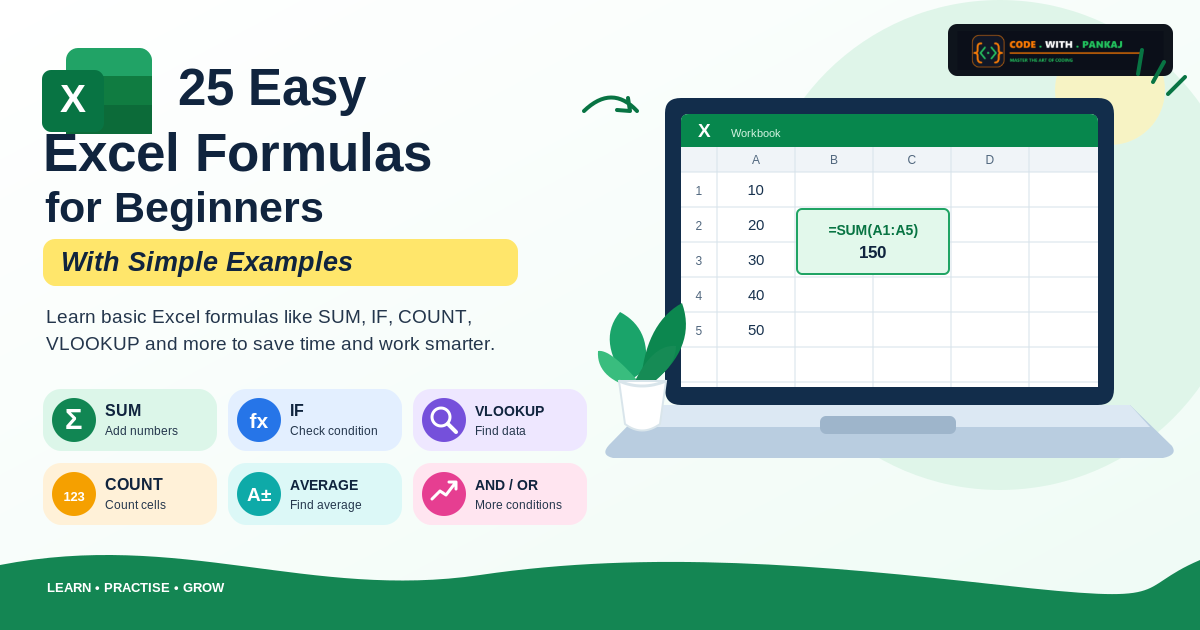
Microsoft Excel is a useful tool for students, office workers, accountants, business owners, and beginners. It helps you calculate numbers, manage data, prepare reports, and complete daily tasks more quickly.
If you are new to Excel, you may think formulas are difficult to understand. But don’t worry! Many Excel formulas are very simple. You just need to understand what each formula does and how to use it.
In this blog, you will learn 25 easy Excel formulas for beginners with simple examples. You can practise these formulas using a basic Excel sheet on your computer.
What Is an Excel Formula?
An Excel formula is a command that tells Excel to perform a calculation or complete a task.
Every basic Excel formula starts with an equal sign (=).
For example:
=10+20
When you press Enter, Excel displays the answer: 30.
You can also use cell references instead of typing numbers directly.
For example:
=A1+B1

This formula adds the numbers stored in cells A1 and B1.
Now, let’s learn 25 easy Excel formulas one by one.
1. SUM Formula – Add Numbers
The SUM formula helps you add numbers quickly. You do not need to add each number manually.
Formula:
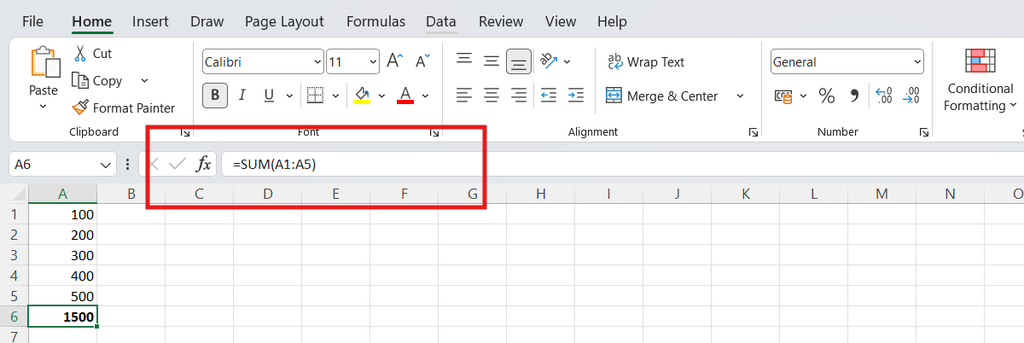
=SUM(A1:A5)
Example:
Suppose cells A1 to A5 contain these amounts:
- A1 = 100
- A2 = 200
- A3 = 300
- A4 = 400
- A5 = 500
Type =SUM(A1:A5) in another cell.
Answer: 1500
Where can you use it? You can calculate total expenses, purchase amounts, sales, or material quantities.
2. AVERAGE Formula – Find the Average
The AVERAGE formula calculates the average of numbers.
Formula:
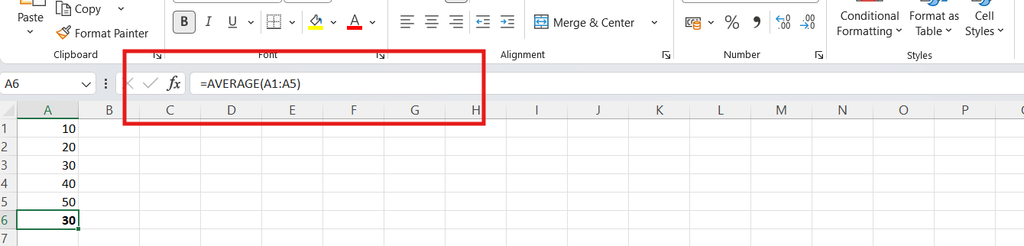
=AVERAGE(A1:A5)
Example:
If the five numbers are 10, 20, 30, 40, and 50, the average is 30.
Where can you use it? Use it to calculate average marks, monthly expenses, or sales performance.
3. COUNT Formula – Count Numbers
The COUNT formula tells you how many cells contain numbers.
Formula:
=COUNT(A1:A5)
Example:
If A1 to A5 contain 10, 20, 30, 40, and 50, the answer is 5.
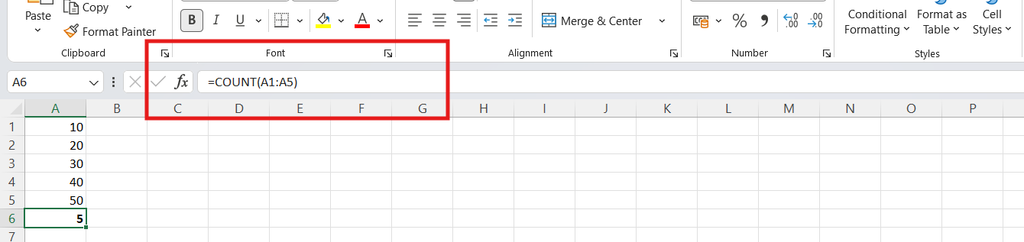
If some cells contain text or are empty, COUNT does not include those cells.
Where can you use it? Use it to count numeric entries in a report.
4. COUNTA Formula – Count Filled Cells
COUNTA counts cells that are not empty. It can count names, numbers, and dates.
Formula:
=COUNTA(A1:A5)
Example:
If A1 contains Amit, A2 contains Rahul, A3 is empty, A4 contains Priya, and A5 contains Neha, the answer is 4.
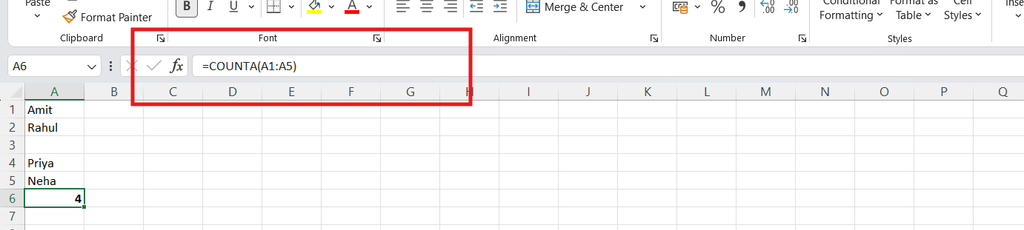
Where can you use it? Use it to count employee names, vendor names, or filled records.
5. MAX Formula – Find the Biggest Number
MAX finds the highest number in a list.
Formula:
=MAX(A1:A5)
Example:
If the numbers are 10, 50, 25, 100, and 75, the answer is 100.
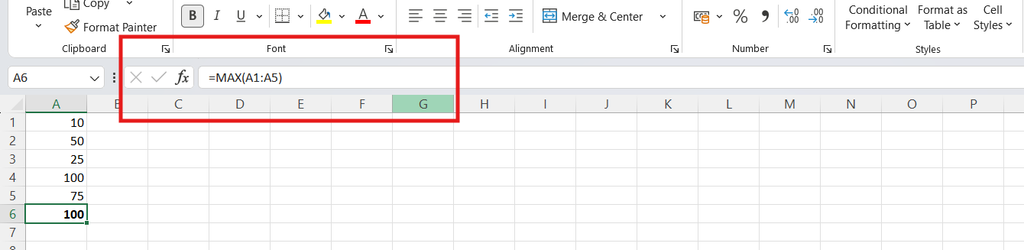
Where can you use it? Use it to find the highest bill amount, maximum sales, or largest quantity.
6. MIN Formula – Find the Smallest Number
MIN finds the lowest number in a list.
Formula:
=MIN(A1:A5)
Example:
If the numbers are 10, 50, 25, 100, and 75, the answer is 10.
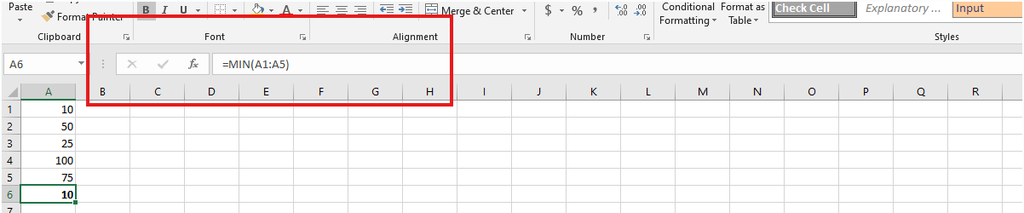
Where can you use it? Use it to find the lowest price or smallest expense.
7. IF Formula – Check a Condition
The IF formula checks a condition and gives one result if it is true and another if it is false.
Formula:
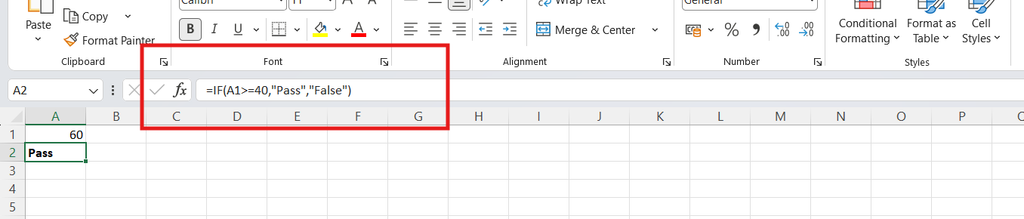
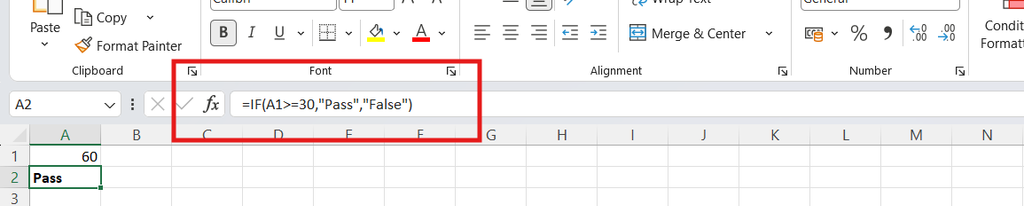
=IF(A1>=40,"Pass","Fail")
Example:
If A1 contains 60, Excel displays “Pass”.
If A1 contains 30, Excel displays “Fail”.
Where can you use it? Use it to check pass or fail results, payment status, and task completion.
8. COUNTIF Formula – Count Matching Entries
COUNTIF counts how many cells contain a particular value or meet a condition.
Formula:
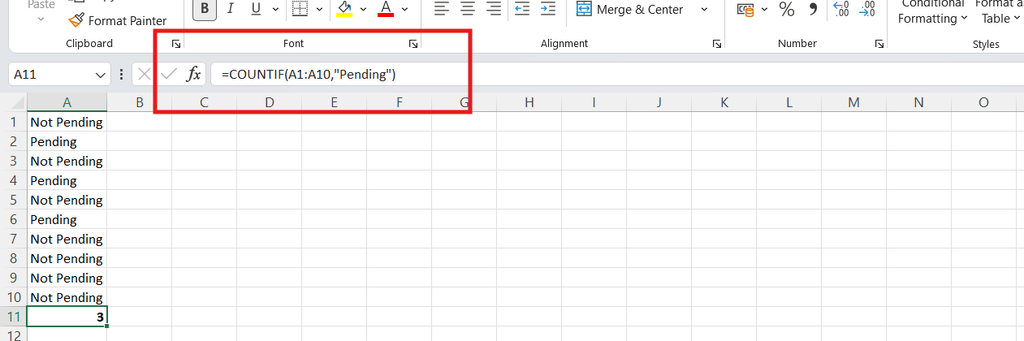
=COUNTIF(A1:A10,"Pending")
Example:
If the range contains the word “Pending” three times, the answer is 3.
Where can you use it? Use it to count pending payments, completed tasks, or orders with a particular status.
9. SUMIF Formula – Add Numbers With One Condition
SUMIF adds numbers only when they match a condition.
Formula:
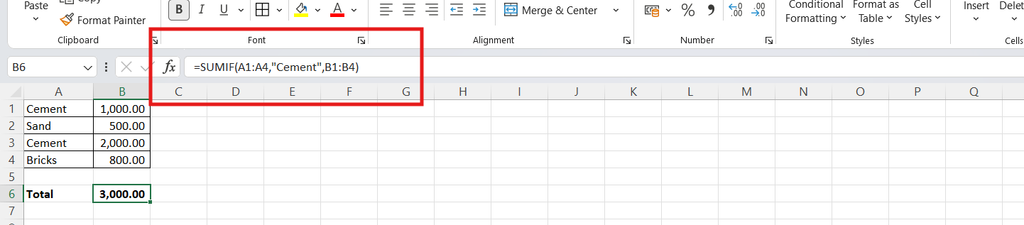
=SUMIF(A2:A5,"Cement",B2:B5)
Example:
Imagine column A contains material names and column B contains amounts.
| Material | Amount |
|---|---|
| Cement | 1,000 |
| Sand | 500 |
| Cement | 2,000 |
| Bricks | 800 |
The formula adds only the amounts for Cement.
Answer: 3000
Where can you use it? Use it to calculate material-wise expenses or vendor-wise purchases.
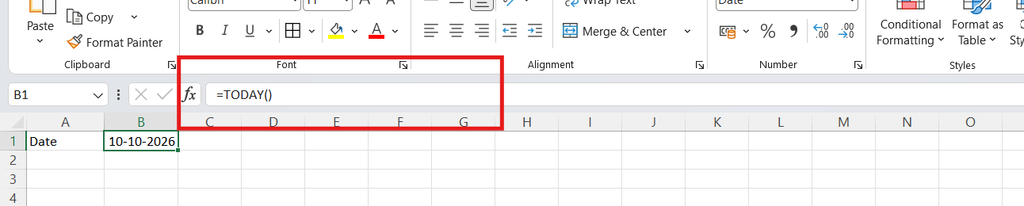
10. TODAY Formula – Show Today’s Date
The TODAY formula displays the current date automatically.
Formula:
=TODAY()
Example:
When you enter this formula, Excel displays today’s date according to your computer’s date settings.
Where can you use it? Use it in daily reports and date-related calculations.
Note: The displayed date updates when Excel recalculates the worksheet.
11. NOW Formula – Show Current Date and Time
NOW displays the current date and time.
Formula:
=NOW()
Example:
Excel displays the current date and time based on your computer’s settings.

Where can you use it? Use it in reports where the current date and time are helpful.
Note: This is not a permanent timestamp. The result can change when Excel recalculates.
12. ROUND Formula – Round Numbers
ROUND helps you round a number to a selected number of decimal places.
Formula:
=ROUND(A1,2)
Example:
If A1 contains 125.678, the answer is 125.68.

Where can you use it? Use it for prices, expenses, and financial calculations.
13. LEN Formula – Count Characters
LEN counts the characters in a cell, including spaces.
Formula:
=LEN(A1)
Example:
If A1 contains “Excel”, the answer is 5.

If A1 contains “Excel Guide”, the answer is 11 because the space also counts.

Where can you use it? Use it to check the length of codes, names, or reference numbers.
14. LEFT Formula – Get Letters From the Left
LEFT extracts characters from the beginning of a text value.
Formula:
=LEFT(A1,3)
Example:
If A1 contains “ABC123”, the answer is “ABC”.

Where can you use it? Use it to extract the first characters of a product code or reference number.
15. RIGHT Formula – Get Letters From the Right
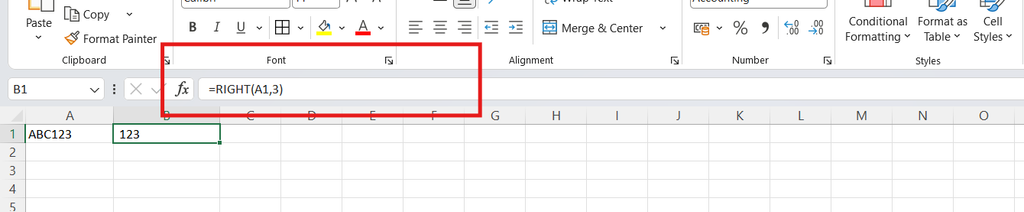
RIGHT extracts characters from the end of a text value.
Formula:
=RIGHT(A1,3)
Example:
If A1 contains “ABC123”, the answer is “123”.
Where can you use it? Use it to extract the last digits of invoice numbers or product codes.
16. MID Formula – Get Text From the Middle
MID extracts characters from the middle of a text value.
Formula:
=MID(A1,4,3)
Example:
If A1 contains “ABC123XYZ”, the answer is “123”.
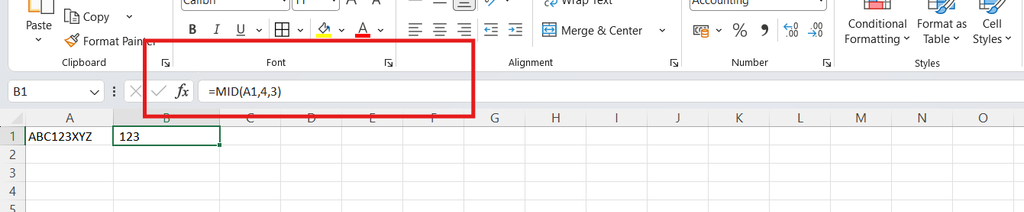
The formula starts at the fourth character and extracts three characters.
Where can you use it? Use it to extract a particular section of a product code or reference number.
17. TRIM Formula – Remove Extra Spaces
TRIM removes extra spaces from text, leaving single spaces between words.
Formula:
=TRIM(A1)
Example:
If A1 contains ” Amit Kumar “, the result is “Amit Kumar”.

Where can you use it? Use it to clean names copied from websites, emails, or other files.
18. CONCAT Formula – Join Text
CONCAT joins text from two or more cells.
Formula:
=CONCAT(A1," ",B1)
Example:
If A1 contains “Amit” and B1 contains “Kumar”, the result is “Amit Kumar”.
The " " adds a space between the names.

Where can you use it? Use it to combine first and last names or join codes.
19. IFERROR Formula – Replace Error Messages
IFERROR displays a different result when a formula produces an error.
Formula:
=IFERROR(A1/B1,0)
Example:
If A1 contains 100 and B1 contains 0, the division produces an error. IFERROR displays 0 instead.

Where can you use it? Use it to make reports easier to read when certain calculation errors are expected.
Tip: Choose a suitable message or value. Showing 0 can sometimes be confusing if zero is a valid result.
20. VLOOKUP Formula – Find Information
VLOOKUP searches for a value in the first column of a table and returns matching information from another column.
Formula:
=VLOOKUP(E2,A2:C10,3,FALSE)
Simple explanation:
- E2 contains the value you want to find.
- A2 is the table where Excel searches.
- 3 tells Excel to return a value from the third column.
- FALSE asks Excel to find an exact match.
Example: You can search for a product code and return its price from a table.
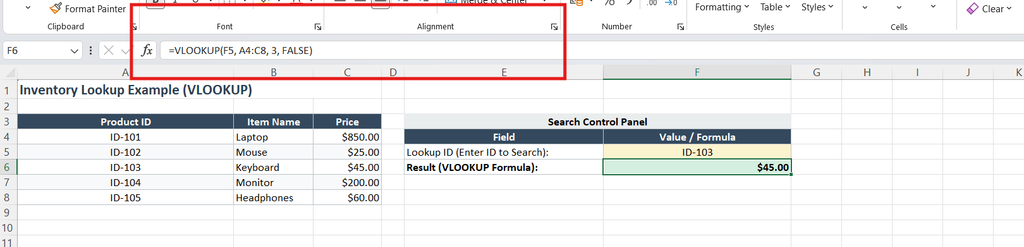
What’s included in the workbook:
- Inventory Table: A sample product table (Columns A–C) where Column A contains the Product ID (1st column), Column B contains the Item Name (2nd column), and Column C contains the Price (3rd column).
- Search Control Panel: An interactive lookup section (Columns E–F) where cell
F5holds the lookup value (ID-103), and cellF6calculates the price using the formula:=VLOOKUP(F5, A4:C8, 3, FALSE) - Professional Formatting: Styled headers, custom highlighting for inputs and results, currency formatting, and clean layout design.
Where can you use it? Use it to find item rates, employee details, or vendor information.
21. XLOOKUP Formula – Find Information Easily
XLOOKUP finds a value in one range and returns matching information from another range.
Formula:
=XLOOKUP(E2,A2:A10,C2:C10,"Not Found")
Example: Excel searches for the value in E2 in column A and returns the matching value from column C. If there is no match, it displays “Not Found”.
Where can you use it? Use it to find product prices, item descriptions, or employee details.
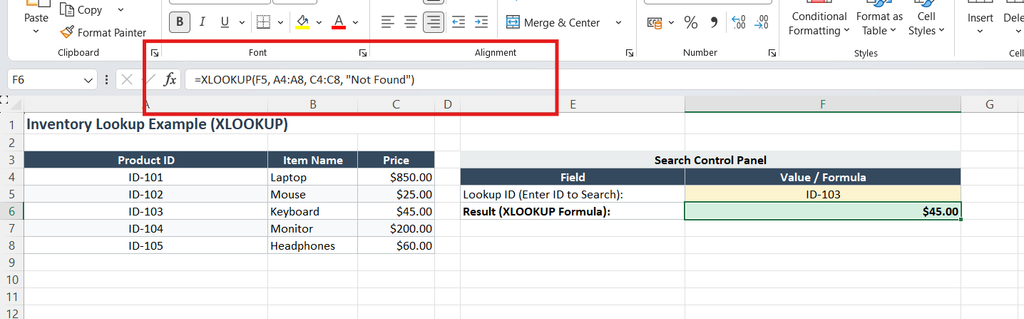
What’s included in the workbook:
- Inventory Table: A sample product catalog (Columns A–C) containing Product IDs, Item Names, and Prices.
- Search Control Panel: An interactive lookup section (Columns E–F) where you can change the lookup ID in cell
F5(ID-103), and cellF6automatically calculates the price using the formula:=XLOOKUP(F5, A4:A8, C4:C8, "Not Found") - Professional Formatting: Styled headers, zebra striping, currency formatting, custom cell highlights for inputs/outputs, and neatly adjusted column widths.
Note: XLOOKUP is available in Microsoft 365 and newer Excel versions, including Excel 2021 and later.
22. AND Formula – Check Multiple Conditions
AND checks whether all selected conditions are true.
Formula:
=AND(A1>=40,B1>=40)
Example:
If A1 contains 60 and B1 contains 50, the answer is TRUE.

If either number is below 40, the answer is FALSE.

Where can you use it? Use it when a person must meet two or more conditions.
23. OR Formula – Check If Any Condition Is True
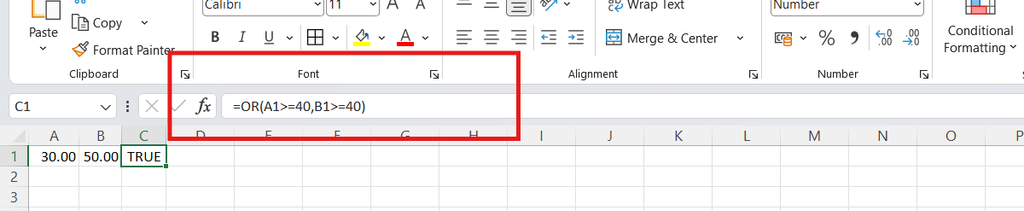
OR checks whether at least one condition is true.
Formula:
=OR(A1>=40,B1>=40)
Example:
If A1 contains 30 and B1 contains 50, the answer is TRUE because one condition is true.
Where can you use it? Use it when meeting any one of several conditions is enough.
24. ABS Formula – Get a Positive Number
ABS returns the positive value of a number without its negative sign.
Formula:
=ABS(A1)
Example:
If A1 contains -250, the answer is 250.

Where can you use it? Use it to calculate the absolute difference between amounts or understand the size of a negative value.
25. SUBTOTAL Formula – Calculate a Total for Filtered Data
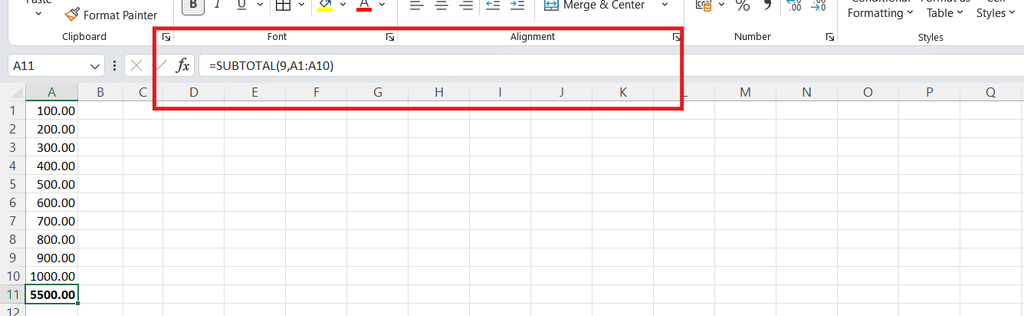
SUBTOTAL performs calculations such as addition or counting. It is particularly useful when your data is filtered.
Formula:
=SUBTOTAL(9,A2:A10)
Example:
This formula adds the visible values in A2 when you apply a filter. The function number 9 means SUM.
Where can you use it? Use it in stock reports, purchase lists, and expense sheets where you filter records.
Quick List of 25 Excel Formulas for Beginners
| Formula | What It Does |
|---|---|
| SUM | Adds numbers |
| AVERAGE | Finds the average |
| COUNT | Counts cells containing numbers |
| COUNTA | Counts filled cells |
| MAX | Finds the highest number |
| MIN | Finds the lowest number |
| IF | Checks a condition |
| COUNTIF | Counts matching entries |
| SUMIF | Adds numbers matching a condition |
| TODAY | Shows today’s date |
| NOW | Shows current date and time |
| ROUND | Rounds numbers |
| LEN | Counts characters |
| LEFT | Extracts characters from the beginning |
| RIGHT | Extracts characters from the end |
| MID | Extracts characters from the middle |
| TRIM | Removes extra spaces |
| CONCAT | Joins text |
| IFERROR | Replaces formula errors with another result |
| VLOOKUP | Finds information in a table |
| XLOOKUP | Looks up matching information |
| AND | Checks whether all conditions are true |
| OR | Checks whether at least one condition is true |
| ABS | Returns the absolute value |
| SUBTOTAL | Calculates results for filtered data |
Tips for Learning Excel Formulas as a Beginner
You do not need to learn all 25 formulas at once. Follow these simple tips to improve your Excel skills.
- Start with easy formulas: Learn SUM, AVERAGE, COUNT, MAX, and MIN first.
- Practise every day: Enter sample numbers into Excel and try the formulas yourself.
- Use simple examples: Practise with expenses, marks, product prices, and names.
- Understand cell references: Learn how A1 and A1 work before moving to complex formulas.
- Check your answers: Compare the results with manual calculations to understand how formulas work.
- Learn one formula at a time: Once you understand one formula, move to the next.
Frequently Asked Questions
1. Which Excel formulas should beginners learn first?
Beginners should start with SUM, AVERAGE, COUNT, MAX, MIN, and IF. These formulas are easy to understand and useful for everyday calculations.
2. How do I write a formula in Excel?
Click an empty cell, type an equal sign (=), enter your formula, and press Enter. For example, =SUM(A1:A5) adds the numbers in cells A1 to A5.
3. Can I learn Excel formulas without experience?
Yes. You can start with simple formulas and practise using sample data. With regular practice, you can gradually learn more advanced functions.
4. Which Excel formula is used to add numbers?
The SUM formula adds numbers. For example, =SUM(A1:A10) adds all the numbers in cells A1 to A10.
5. What is the difference between COUNT and COUNTA?
COUNT counts cells containing numbers. COUNTA counts cells that are not empty, including text and numbers.
6. Which Excel formula is used to find a price?
You can use VLOOKUP or XLOOKUP to find a product price from a table using its product code or name.
7. Are Excel formulas useful for office work?
Yes. Excel formulas help with calculations, purchase reports, stock management, payment tracking, employee records, and many other office tasks.
Conclusion
Excel becomes much easier when you start with simple formulas and practise them regularly. These 25 easy Excel formulas for beginners can help you add numbers, calculate averages, find information, clean data, and prepare better reports.
Start with five formulas today and try them in a sample worksheet. As your confidence grows, you can learn more formulas and use Excel more effectively in your daily work.
Keep practising, and remember: you do not need to learn everything in one day.