
Have you ever needed to find a name, price, product code, employee detail, or other information from a large Excel sheet? Searching for data manually can take a lot of time, especially when you work with hundreds or thousands of records.
This is where VLOOKUP in Excel becomes useful.
VLOOKUP is one of the most popular Excel formulas used to find information quickly. Whether you are a student, office employee, accountant, data entry operator, or business owner, learning VLOOKUP can help you save time and reduce manual work.
In this blog, we will explain what VLOOKUP is, how to use it, its formula, practical examples, common errors, and useful tips in very simple English.
What Is VLOOKUP in Excel?
VLOOKUP stands for Vertical Lookup. It is an Excel function that searches for a value in the first column of a selected table and returns related information from another column in the same row.
For example, suppose you have an Excel sheet containing employee IDs, names, departments, and salaries. If you want to find the salary of a particular employee using their employee ID, you can use VLOOKUP.
Instead of searching the entire sheet manually, Excel will find the required information for you.
In simple words, VLOOKUP helps you search for data in Excel and return the information you need.
What Is the VLOOKUP Formula in Excel?
The basic syntax of the VLOOKUP formula is:
=VLOOKUP(lookup_value, table_array, col_index_num, [range_lookup])
Let’s understand each part of this formula.
- lookup_value: The value you want to search for, such as an employee ID or product code.
- table_array: The range of cells where Excel should search for the information.
- col_index_num: The column number from which Excel should return the result. The first column in the selected range is column 1.
- range_lookup: Determines whether Excel should find an exact match or an approximate match. Use FALSE for an exact match and TRUE for an approximate match.
For beginners, using FALSE is usually the best choice when searching for an exact employee ID, product code, or other specific value.
How to Use VLOOKUP in Excel Step by Step
Let’s understand VLOOKUP with a simple example.
Suppose you have the following employee data in Excel:
| Employee ID | Employee Name | Department | Salary |
|---|---|---|---|
| 101 | Rahul | Sales | 25,000 |
| 102 | Priya | HR | 30,000 |
| 103 | Amit | Accounts | 28,000 |
| 104 | Neha | Marketing | 32,000 |
| 105 | Rohit | IT | 35,000 |
Now, suppose you want to find the salary of the employee whose ID is 103.
Follow these simple steps.
Step 1: Enter the Data in Excel
First, enter your employee details into an Excel sheet. Make sure each type of information is placed in a separate column.
For example, Employee ID should be in column A, Employee Name in column B, Department in column C, and Salary in column D.
Step 2: Select the Cell for Your Result
Choose an empty cell where you want Excel to display the employee’s salary.
For example, select cell F2.
Enter the employee ID you want to search for in cell E2. In this example, enter 103.
Step 3: Enter the VLOOKUP Formula
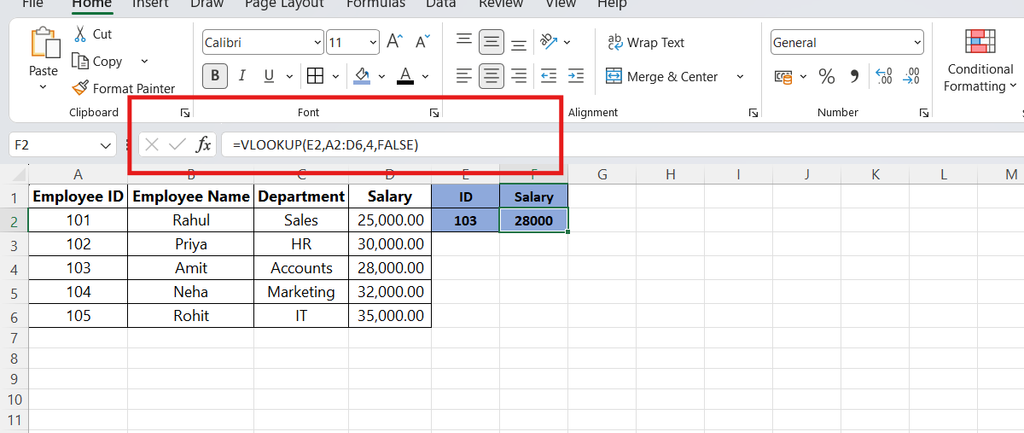
Click cell F2 and type the following formula:
=VLOOKUP(E2,A2:D6,4,FALSE)
Press Enter.
Step 4: Get the Result
Excel will search for employee ID 103 in the first column of the selected range and return the value from the fourth column.
The result will be:
28,000
That’s it! You have successfully used VLOOKUP in Excel.
Practical Examples of VLOOKUP in Excel
VLOOKUP is useful for many everyday office tasks. Here are some common examples.
1. Find an Employee’s Name Using Employee ID
Suppose employee IDs are listed in column A and employee names are listed in column B.
To find the name of the employee with ID 102, use:
=VLOOKUP(102,A2:B6,2,FALSE)
Result: Priya
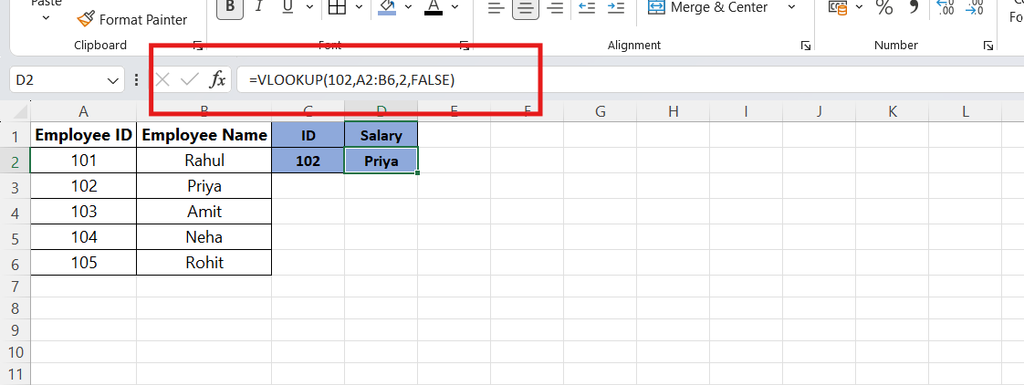
This formula searches for employee ID 102 and returns the employee’s name from the second column.
2. Find a Product Price Using a Product Code
Suppose you have a product list containing product codes and prices.
| Product Code | Product Name | Price |
|---|---|---|
| P101 | Keyboard | 800 |
| P102 | Mouse | 400 |
| P103 | Monitor | 7,500 |
| P104 | Printer | 5,000 |
If you want to find the price of product P103, use:
=VLOOKUP("P103",A2:C5,3,FALSE)
Result: 7,500
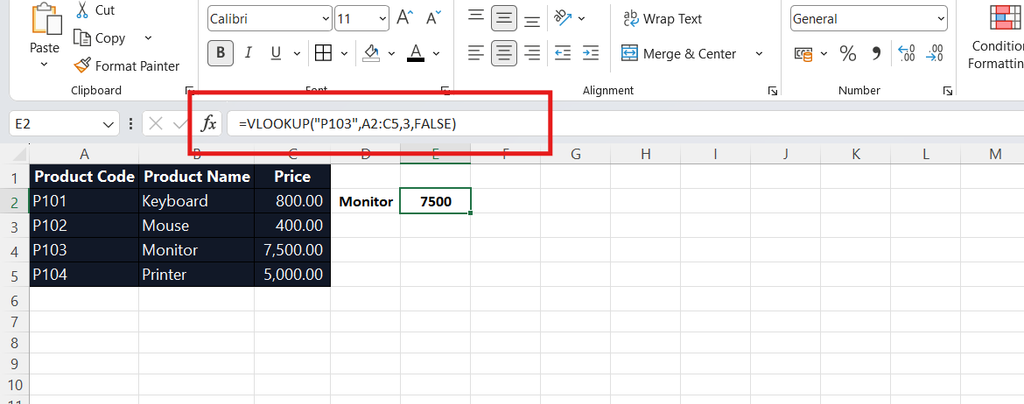
This formula is useful for purchase departments, stores, inventory management, and billing work.
3. Find an Employee’s Department
If employee IDs are in column A and departments are in column C, use:
=VLOOKUP(104,A2:D6,3,FALSE)
Result: Marketing
Here, 3 means that Excel will return the value from the third column of the selected range.
4. Use a Cell Reference in VLOOKUP
You do not always need to type the search value directly into the formula. You can use a cell reference instead.
For example:
=VLOOKUP(E2,A2:D6,4,FALSE)
When you change the employee ID in cell E2, Excel will automatically search for the new ID and display the corresponding salary, provided the formula is set up correctly.
This method is useful when you need to look up many different values from the same data table.
Difference Between TRUE and FALSE in VLOOKUP
The last argument in the VLOOKUP formula determines the type of match.
FALSE — Exact Match
Use FALSE when you want Excel to find the exact value you entered.
Example:
=VLOOKUP(103,A2:D6,4,FALSE)
This searches for employee ID 103 and returns its salary.
If Excel cannot find an exact match, it generally returns the #N/A error.
TRUE — Approximate Match
Use TRUE when an approximate match is required, such as finding a commission rate or grade based on a range of scores.
For approximate matching, the first column of the lookup range should be sorted in ascending order for reliable results.
If you are new to Excel, use FALSE for most searches involving IDs, product codes, and specific records.
Common VLOOKUP Errors and How to Fix Them
Sometimes, the VLOOKUP formula may not return the expected result. Here are some common errors and their solutions.
1. #N/A Error
This error usually means Excel cannot find the requested value.
How to fix it:
- Check whether the lookup value exists in the first column of the selected range.
- Check for extra spaces or spelling differences.
- Make sure numbers and text are stored in compatible formats.
2. #REF! Error
This error may occur when the column number in your formula is greater than the number of columns in the selected table.
How to fix it: Check the third argument of the formula and ensure it refers to a column within the selected range.
3. Wrong Result
VLOOKUP may return an unexpected result if the last argument is TRUE or omitted when you need an exact match.
How to fix it: Use FALSE for an exact match.
4. VLOOKUP Is Not Finding Data
VLOOKUP searches for the lookup value in the first column of the selected range.
For example, if employee names are in column B but your selected range starts from column C, VLOOKUP cannot search column B using that range.
How to fix it: Select a range that starts with the column containing the value you want to search for.
Important Tips for Using VLOOKUP in Excel
Follow these tips to use VLOOKUP more effectively.
- Use FALSE for exact matches: This is usually the safest option when searching for specific records.
- Check the selected range: Make sure your lookup column is the first column in the range.
- Use cell references: They make formulas easier to reuse.
- Check the column number: Count columns from the beginning of the selected range, not from the beginning of the worksheet.
- Use absolute references when copying formulas: For example,
=VLOOKUP(E2,$A$2:$D$6,4,FALSE). The dollar signs help keep the data range fixed when copying the formula. - Keep your data clean: Extra spaces, inconsistent data types, and duplicate lookup values can cause problems or unexpected results.
What Are the Limitations of VLOOKUP?
Although VLOOKUP is very useful, it has a few limitations.
- It searches from left to right: The lookup value must be in the first column of the selected range.
- It uses a column number: If the structure of your table changes, you may need to update the formula.
- It returns the first matching result: If the lookup column contains duplicate values, VLOOKUP returns the first match it encounters.
- It requires compatible lookup values: Differences between text and numbers can prevent an exact match.
Newer Excel versions also offer the XLOOKUP function, which can search in either direction and offers more flexibility. However, VLOOKUP remains useful because it is widely supported and commonly used in workplaces.
Frequently Asked Questions (FAQs)
1. What is VLOOKUP used for in Excel?
VLOOKUP is used to search for a value in the first column of a table and return related information from another column in the same row.
2. How do I use VLOOKUP for beginners?
Enter your data in Excel, select an empty cell, type the VLOOKUP formula, choose the lookup value and table range, enter the result column number, and use FALSE for an exact match.
3. What is the basic VLOOKUP formula?
The basic formula is:
=VLOOKUP(lookup_value,table_array,col_index_num,FALSE)
This formula is commonly used to find an exact match.
4. Why is my VLOOKUP showing #N/A?
The #N/A error usually means Excel cannot find the requested value. Check the lookup value, the selected range, spaces, and the data format.
5. Can VLOOKUP search for data in another Excel sheet?
Yes. You can use VLOOKUP to search for data on another worksheet in the same workbook.
For example:
=VLOOKUP(A2,Sheet2!A:D,3,FALSE)
This formula searches for the value in A2 in the first column of columns A to D on Sheet2 and returns the value from the third column.
6. Can I use VLOOKUP to find prices?
Yes. VLOOKUP can find product prices, material rates, item details, and other information when the product code or search value is in the first column of the selected range.
7. Is VLOOKUP available in all versions of Excel?
VLOOKUP is available in many versions of Microsoft Excel, including older versions. This makes it a useful formula for sharing workbooks with different users.
Conclusion
VLOOKUP is a simple and powerful Excel function that helps you find information without searching through an entire spreadsheet manually.
Once you understand the formula and its four arguments, you can use it to find employee details, product prices, stock information, customer records, and much more.
The best way to learn VLOOKUP is to practise it with a small Excel table. Start with an exact match using FALSE, understand how the column number works, and gradually try more examples.
With regular practice, VLOOKUP can make your daily Excel work faster, easier, and more accurate.
Start practicing VLOOKUP today and make your Excel work simpler!