
Are you learning HTML and wondering how to create the main heading of a webpage? The HTML H1 tag is one of the most important heading elements you should understand when building your first website.
In this beginner-friendly tutorial, you will learn how to use the HTML H1 tag, understand the difference between HTML heading levels, and style your main heading using CSS.
We will also create a complete HTML example, explain the code step by step, and provide a simple practice challenge to help you improve your HTML skills.
By the end of this tutorial, you will know how to create and customize a professional-looking main heading for your website.
What Is the HTML H1 Tag?
The HTML <h1> tag is used to define the highest-level heading on a webpage. It generally represents the main topic or title of the page.
For example, if you are creating a personal website, you can use an H1 heading to introduce your website.
HTML H1 Tag Example
<h1>Welcome to My Website</h1>Output
Welcome to My Website
The browser displays this text as a heading. By default, the H1 heading appears larger and bolder than normal paragraph text.
The H1 tag helps organize webpage content and makes the main topic easier for users to understand.
HTML Heading Tags Explained
HTML provides six heading elements, starting from <h1> and ending with <h6>.
Each heading represents a different level in the content hierarchy.
| HTML Tag | Heading Level |
|---|---|
<h1> | Main heading |
<h2> | Second-level heading |
<h3> | Third-level heading |
<h4> | Fourth-level heading |
<h5> | Fifth-level heading |
<h6> | Sixth-level heading |
Example of HTML Heading Tags
<h1>My HTML Learning Journey</h1>

<h2>Introduction to HTML</h2>

<h3>HTML Basics</h3>

<h4>HTML Elements</h4>

<h5>HTML Attributes</h5>

<h6>HTML Practice</h6>
Use heading levels in a logical order to organize your webpage content. For example, an H3 heading should normally be used under an H2 section.
How to Create a Main Heading Using HTML H1
Now let’s create a simple webpage using the HTML H1 tag.
Step 1: Create an HTML File
First, open Notepad, Visual Studio Code, or any code editor.
Create a new file and save it as:
index.html
Step 2: Write the HTML Code
Copy and paste the following HTML code into your file.
Complete HTML H1 Tag Example
<!DOCTYPE html>
<html lang="en">

<head>
    <meta charset="UTF-8">
    <meta name="viewport" content="width=device-width, initial-scale=1.0">

    <title>HTML H1 Tag Practice</title>

    <style>
        body {
            font-family: Arial, sans-serif;
            background-color: #f2f6ff;
            text-align: center;
            padding: 50px;
        }

        h1 {
            color: #ff6600;
            font-size: 36px;
            margin-bottom: 15px;
        }

        p {
            color: #444444;
            font-size: 18px;
        }
    </style>

</head>

<body>

    <h1>Welcome to CodeWithPankaj</h1>

    <p>
        I am learning HTML and CSS.
        This is my third practice program.
    </p>

</body>

</html>
Step 3: Run Your HTML Program
Follow these simple steps:
- Save the file as
index.html. - Locate the saved file on your computer.
- Double-click the HTML file.
- It will open in your web browser.
- You will see your main heading and paragraph.
Expected Output
Your webpage will display:
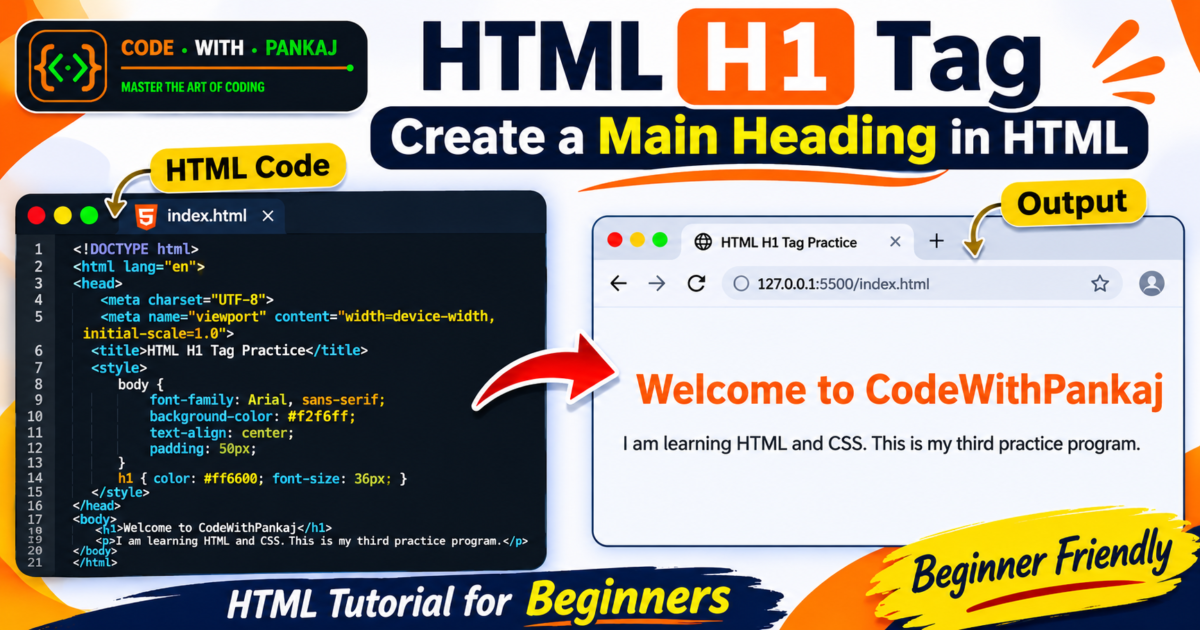
Welcome to CodeWithPankaj
I am learning HTML and CSS. This is my third practice program.

The heading will appear in orange, and the background will be light blue.
See the Result in Action
Explore the live project and download the complete source code from GitHub.
Understanding the HTML H1 and CSS Code
Let’s understand the important parts of this HTML program.
1. The H1 Tag
<h1>Welcome to CodeWithPankaj</h1>The <h1> element creates the main heading of your webpage.
You can replace the text with any heading you want.
2. Change the H1 Heading Color
h1 {
    color: #ff6600;
}
The CSS color property changes the text color.
Here, #ff6600 represents an orange color.
3. Change the H1 Font Size
h1 {
    font-size: 36px;
}
The font-size property controls the size of the heading text.
You can increase or decrease the value according to your design.
4. Center the Heading
body {
    text-align: center;
}
The text-align: center; property aligns text horizontally in the center.
5. Add Space Below the Heading
h1 {
    margin-bottom: 15px;
}
The margin-bottom property adds space below the H1 heading.
It helps separate the heading from the paragraph.
Difference Between HTML H1 Tag and Title Tag
The HTML H1 tag and title tag are different elements with different purposes.
| H1 Tag | Title Tag |
|---|---|
| Displays a heading on the webpage | Defines the document title |
Written inside the <body> | Written inside the <head> |
| Visible in webpage content | Usually visible in the browser tab |
| Helps organize page content | Helps identify the webpage in search results and browser tabs |
Example
<!DOCTYPE html>
<html lang="en">

<head>
    <title>My First Website</title>
</head>

<body>

    <h1>Welcome to My Website</h1>

</body>

</html>
In this example:
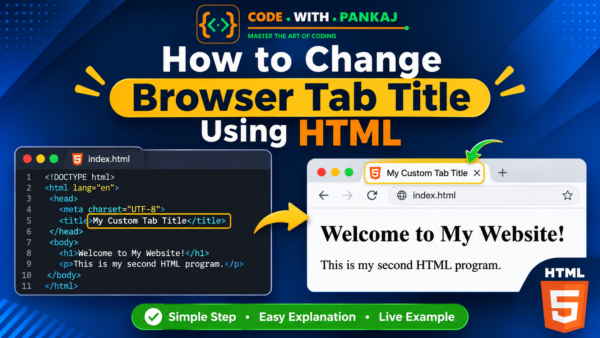
- The title tag displays My First Website in the browser tab.
- The H1 tag displays Welcome to My Website inside the webpage.
Both elements should describe the page accurately.
How to Style an H1 Heading Using CSS
You can customize the appearance of an HTML H1 heading using CSS.
For example:
<!DOCTYPE html>
<html lang="en">

<head>
    <title>H1 CSS Styling</title>

    <style>
        h1 {
            color: green;
            font-size: 48px;
            font-family: Arial, sans-serif;
            text-align: center;
        }
    </style>

</head>

<body>

    <h1>My First Website</h1>

</body>

</html>
CSS Properties Used
color: Changes the heading text color.font-size: Changes the heading size.font-family: Changes the font style.text-align: Aligns the heading text.
You can use CSS to create attractive headings without changing the HTML heading level.
Best Practices for Using the HTML H1 Tag
Follow these simple HTML heading best practices when creating your website.
- Use a descriptive H1 heading: Write a heading that clearly explains the main topic of your webpage.
- Generally use one main H1 per page: A single clear H1 is a good practice for identifying the page’s main topic.
- Follow a logical heading structure: Use H2 for main sections and H3 for subsections under H2.
- Do not skip heading levels unnecessarily: Maintain a logical hierarchy such as H1, H2, and H3.
- Do not use H1 only to make text bigger: Use CSS to control the visual appearance of text.
- Keep headings readable: Choose appropriate font sizes and colors for desktop and mobile devices.
- Write headings for users first: Use natural language rather than repeating keywords unnecessarily.
A well-structured heading hierarchy makes your content easier to navigate and understand for users and assistive technologies.
Common Mistakes Beginners Make With H1
When learning HTML, beginners sometimes make these mistakes.
Mistake 1: Using H1 for Every Heading
Incorrect:
<h1>Introduction</h1>
<h1>HTML Basics</h1>
<h1>CSS Basics</h1>
Better:
<h1>My HTML Tutorial</h1>

<h2>Introduction</h2>

<h2>HTML Basics</h2>

<h2>CSS Basics</h2>
Use heading levels according to the content structure.
Mistake 2: Using H1 Only for Font Size
Incorrect approach:
<h1>This is a large paragraph</h1>If the text is not actually a heading, use a paragraph and style it with CSS.
Mistake 3: Forgetting the Closing H1 Tag
Incorrect:
<h1>Welcome to My WebsiteCorrect:
<h1>Welcome to My Website</h1>Always close your heading elements properly.
HTML H1 Tag Practice Challenge
Now it is your turn to practice.
Create a webpage using the HTML H1 tag and complete these tasks:
- Change the heading text to
My First Website. - Change the heading color to green.
- Set the heading font size to
48px. - Change the background color to light yellow.
- Add a paragraph below the heading.
- Center the heading and paragraph.
Bonus Practice
Create a webpage with the following heading:
<h1>My Coding Journey</h1>Try adding your own CSS styling to make the webpage attractive.
Tip: Practice writing the HTML code yourself instead of only copying it. This will help you understand HTML and CSS more effectively.
Frequently Asked Questions About HTML H1 Tag
1. What is the H1 tag in HTML?
The H1 tag is an HTML heading element used to represent the highest-level heading on a webpage. It usually describes the main topic of the page.
2. How do I create an H1 heading in HTML?
Use the <h1> opening tag and </h1> closing tag around your heading text.
Example:
<h1>Welcome to My Website</h1>3. Is the H1 tag important for SEO?
The H1 tag helps communicate the main topic and structure of a webpage. It can help search engines and users understand the content, but using H1 alone does not guarantee higher rankings.
4. Can I use more than one H1 tag on a webpage?
HTML allows multiple H1 elements in certain situations, but using one clear main H1 per webpage is generally a good practice for content organization and accessibility.
5. What is the difference between H1 and H2?
The H1 tag represents the main heading, while H2 is used for major sections within the page.
Example:
<h1>HTML Tutorial</h1>

<h2>Introduction to HTML</h2>

<h2>HTML Elements</h2>
6. How can I change the H1 heading color?
You can change the H1 heading color using CSS.
Example:
h1 {
    color: blue;
}
7. What is the default size of an H1 heading?
The default H1 appearance depends on the browser’s CSS styles. You can set a specific font size using the CSS font-size property.
Conclusion
In this tutorial, you learned how to use the HTML H1 tag to create a main heading on a webpage.
You also learned:
- What the HTML H1 tag is.
- How HTML heading tags work.
- How to create a complete HTML webpage.
- How to style an H1 heading using CSS.
- The difference between H1 and the title tag.
- HTML heading best practices.
- How to practice creating your own webpage.
Keep practicing these small HTML programs because they will help you build a strong foundation in web development.
If you are a beginner, start with simple HTML examples and gradually move toward creating complete websites.
Happy Coding!