
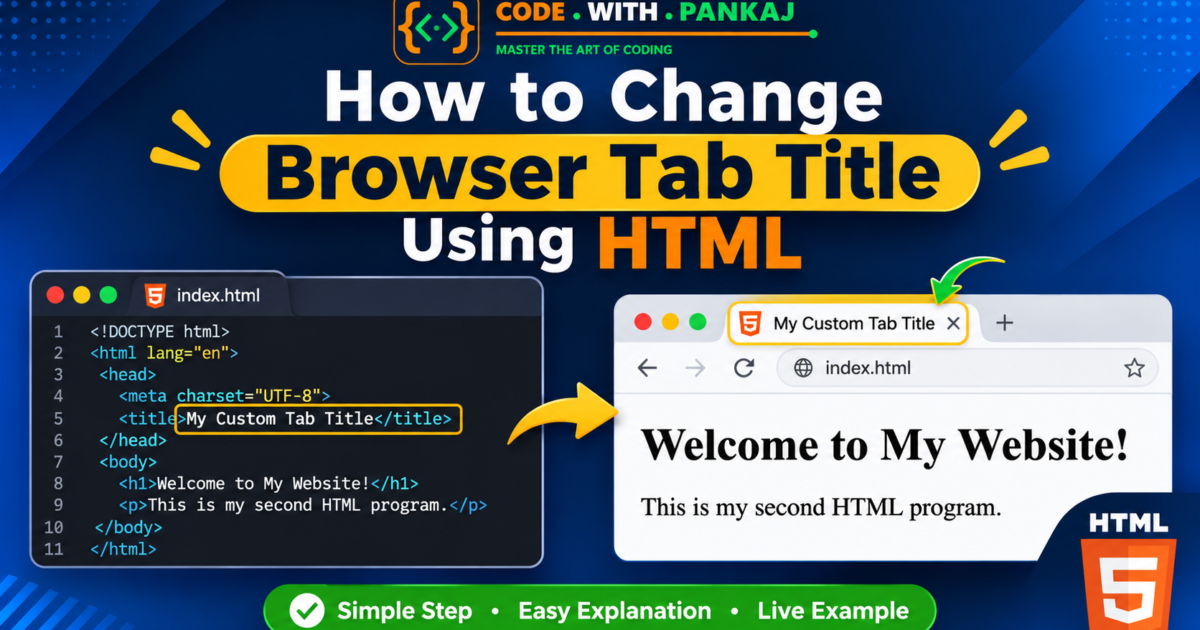
Have you ever wondered how to change the text displayed on a browser tab when you open a website? If you are learning HTML, you can easily customize your browser tab title using the HTML <title> tag.
In this HTML tutorial, you will learn how to change the browser tab title using HTML, understand how the <title> element works, and create your own HTML webpage with a custom title.
This is HTML Practice Program #2 in our beginner-friendly HTML tutorial series by CodeWithPankaj.
What Is a Browser Tab Title in HTML?
A browser tab title is the text displayed on a browser tab when you open a webpage in Google Chrome, Microsoft Edge, Firefox, or another browser.
For example, when you open a website, its title appears at the top of the browser window or inside the browser tab.
HTML provides the <title> element to define the title of a webpage. It is placed inside the <head> section of an HTML document.
The browser tab title is also useful for bookmarks, browser history, accessibility, and search engine optimization (SEO).
HTML Code to Change Browser Tab Title
To change the browser tab title using HTML, follow these simple steps:
- Open Notepad, VS Code, or any HTML code editor.
- Create a new file named
index.html. - Copy the following HTML code into the file.
- Save the file and open it in your web browser.
Complete HTML Program
<!DOCTYPE html>
<html lang="en">

<head>
    <meta charset="UTF-8">
    <meta name="viewport" content="width=device-width, initial-scale=1.0">

    <title>My First Website</title>
</head>

<body>

    <h1>Welcome to My Website!</h1>

    <p>This is my second HTML practice program.</p>

</body>

</html>
How to Run This HTML Program
After saving your file as index.html:
- Double-click the HTML file to open it in your browser.
- Alternatively, right-click the file and select Open with Chrome or Edge.
- Check the browser tab to see the title My First Website.
- You will also see the main heading and paragraph on the webpage.
Explanation of HTML Code
Let’s understand each HTML element used in this program.
1. DOCTYPE HTML
<!DOCTYPE html>The DOCTYPE declaration tells the browser to interpret the document using modern HTML standards.
2. HTML Tag
<html lang="en">The <html> element is the root element of an HTML document.
The lang="en" attribute specifies that the primary language of the webpage is English.
3. Head Tag
<head>
</head>
The <head> element contains webpage metadata, such as the page title, character encoding, and viewport settings.
Most information inside the <head> section is not directly displayed as webpage content.
4. Meta Charset UTF-8
<meta charset="UTF-8">This declaration specifies the character encoding used by the webpage.
UTF-8 supports a wide range of characters, symbols, and languages.
5. Viewport Meta Tag
<meta name="viewport" content="width=device-width, initial-scale=1.0">This tag helps the webpage display correctly on mobile phones, tablets, and desktop devices.
6. Title Tag
<title>My First Website</title>The <title> element defines the title of the HTML document.
In this program, the browser tab displays:
My First Website
The <title> element is placed inside the <head> section and contains text, not visible webpage headings.
7. Body Tag
<body>
</body>
The <body> element contains the visible content of the webpage.
For example, headings, paragraphs, images, links, and other webpage elements are placed inside the body.
8. H1 Tag
<h1>Welcome to My Website!</h1>The <h1> element displays the main heading on the webpage.
It is different from the <title> element because the H1 heading appears inside the webpage itself.
9. Paragraph Tag
<p>This is my second HTML practice program.</p>The <p> element is used to display a paragraph of text on the webpage.
Expected Output of HTML Program
After opening your index.html file in a browser, you will get the following result.
Browser Tab Title:
My First Website
Webpage Output:
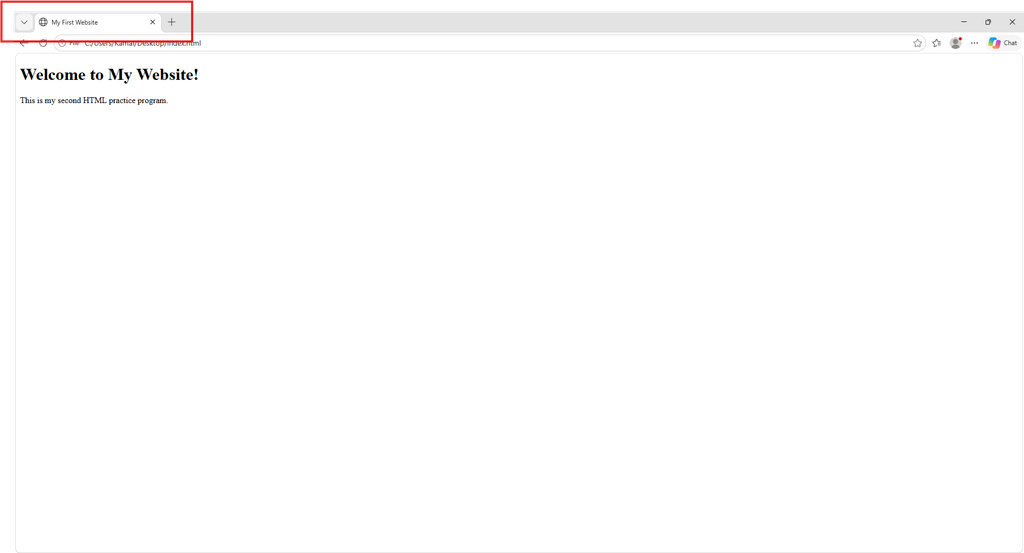
Your webpage will display:
- Main Heading: Welcome to My Website!
- Paragraph: This is my second HTML practice program.
The browser tab will display My First Website.
See the Result in Action
Explore the live project and download the complete source code from GitHub.
Difference Between HTML Title and H1 Tag
Many beginners confuse the <title> and <h1> elements. Both contain text, but their purposes are different.
| HTML Element | Purpose |
|---|---|
<title> | Defines the browser tab and document title |
<h1> | Displays the main heading on the webpage |
<p> | Displays paragraph text on the webpage |
Example:
<title>My First Website</title>
<h1>Welcome to My Website!</h1>
Here, the browser tab displays My First Website, while the webpage displays Welcome to My Website!.
Mini Practice Challenge: Change Your Browser Tab Title
Now let’s customize your webpage using the CodeWithPankaj name.
Replace your existing title and heading with the following code:
<title>CodeWithPankaj | HTML Practice</title>

<h1>Welcome to CodeWithPankaj</h1>
After saving and refreshing your webpage, you will see:
- Browser Tab Title: CodeWithPankaj | HTML Practice
- Main Heading: Welcome to CodeWithPankaj
Congratulations! You have successfully customized your HTML webpage.
Frequently Asked Questions (FAQs)
1. Which HTML tag is used to change the browser tab title?
The <title> tag is used to define the browser tab title. It must be placed inside the <head> section of an HTML document.
2. Can I change the browser tab title using HTML?
Yes. You can change the browser tab title by modifying the text inside the <title> element and saving your HTML file.
3. What is the difference between title and H1 in HTML?
The <title> element defines the document title displayed in the browser tab, while the <h1> element displays the main heading inside the webpage.
4. Does the HTML title tag help in SEO?
Yes. A descriptive and relevant HTML title can help search engines understand the topic of a webpage and may influence the title shown in search results.
5. Where should the title tag be placed in HTML?
The <title> element should be placed inside the <head> section of an HTML document.
6. Can I use multiple title tags in one HTML page?
No. An HTML document should contain only one <title> element.
Conclusion
In this HTML Practice Program #2, you have learned how to change the browser tab title using HTML.
You have also learned:
- What a browser tab title is.
- How to use the HTML
<title>element. - How to create a basic HTML webpage.
- The difference between
<title>and<h1>. - How to customize your website title using CodeWithPankaj.
The <title> element is a small but important part of every HTML webpage. Always use a meaningful, descriptive, and unique title for your pages.
Keep practising HTML and continue learning web development step by step!