
Learn HTML and CSS for Beginners – Step-by-Step Tutorial with Complete Source Code
Are you looking to learn website development from scratch? If you are a beginner, learning HTML and CSS is the best place to start.
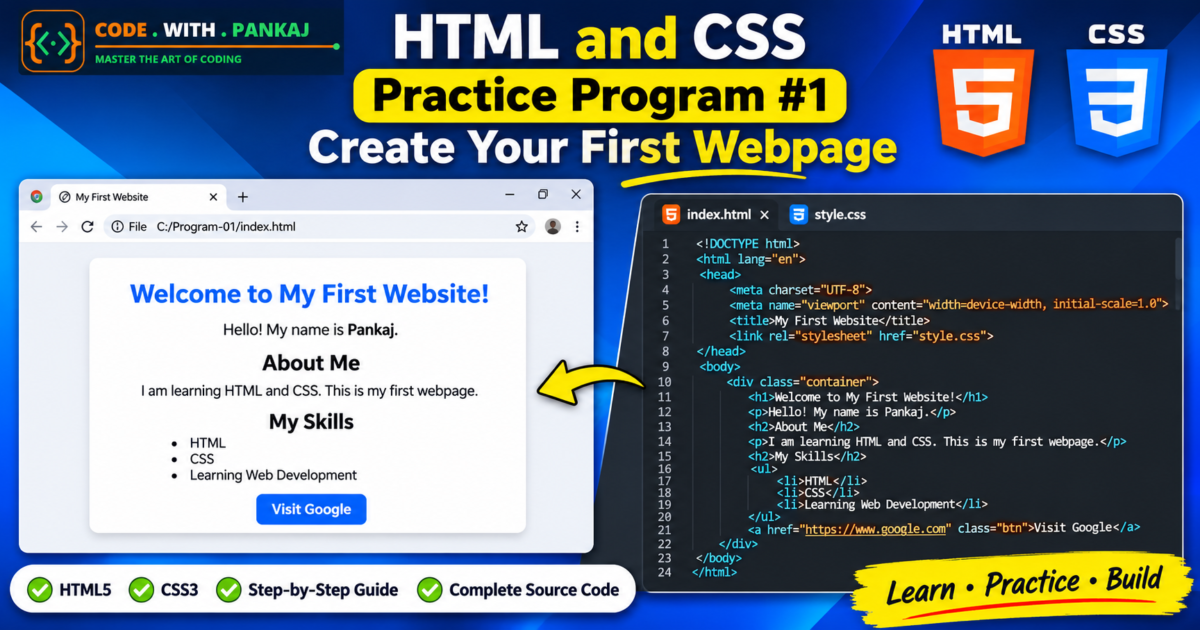
In this HTML and CSS Practice Program #1, you will learn how to create your first webpage using HTML5 and CSS3. This practical tutorial includes complete source code, step-by-step instructions, HTML and CSS explanations, and beginner-friendly coding challenges.
By the end of this program, you will be able to create a simple, attractive, and responsive webpage using HTML and CSS.
What Is HTML?
HTML stands for HyperText Markup Language. It is the standard markup language used to create the structure of webpages.
HTML helps you add different elements to a webpage, such as:
- Headings
- Paragraphs
- Images
- Hyperlinks
- Lists
- Tables
- Forms
Think of HTML as the structure of a house. It creates the basic foundation and defines where different elements are placed.
What Is CSS?
CSS stands for Cascading Style Sheets. It is used to style and design webpages.
With CSS, you can customise:
- Text colours
- Background colours
- Font styles and sizes
- Margins and padding
- Borders and rounded corners
- Page layouts
- Button designs
- Responsive layouts
Think of CSS as the interior design of a house. HTML creates the structure, while CSS makes it beautiful.
HTML and CSS Practice Program #1: Project Requirements
Before starting this practical program, make sure you have the following tools installed:
- Visual Studio Code (VS Code): A code editor for writing HTML and CSS.
- Google Chrome: A web browser for viewing your webpage.
You can also use any other code editor or browser of your choice.
Step 1: Create Your First HTML and CSS Project
First, create a new folder on your computer and name it:
Program-01
Inside this folder, create the following two files:
Program-01/
│
├── index.html
│
└── style.css
File Description:
index.htmlcontains the structure and content of your webpage.style.csscontains the styling and design of your webpage.
Step 2: Write Your First HTML Code
Open the index.html file in Visual Studio Code and write the following HTML code.
HTML Source Code
<!DOCTYPE html>
<!-- This tells the browser that we are using HTML5 -->

<html lang="en">

<head>
    <!-- Contains webpage information -->

    <meta charset="UTF-8">

    <!-- Makes the webpage responsive -->
    <meta name="viewport"
          content="width=device-width, initial-scale=1.0">

    <!-- Browser tab title -->
    <title>My First Website</title>

    <!-- Connects the external CSS file -->
    <link rel="stylesheet" href="style.css">

</head>

<body>

    <!-- Main content container -->
    <div class="container">

        <!-- Main heading -->
        <h1>Welcome to My First Website!</h1>

        <!-- Introduction -->
        <p>Hello! My name is Pankaj.</p>

        <!-- About section -->
        <h2>About Me</h2>

        <p>
            I am learning HTML and CSS.
            This is my first webpage.
        </p>

        <!-- Skills section -->
        <h2>My Skills</h2>

        <ul>
            <li>HTML</li>
            <li>CSS</li>
            <li>Learning Web Development</li>
        </ul>

        <!-- Google link -->
        <a href="https://www.google.com" class="btn">
            Visit Google
        </a>

    </div>

</body>

</html>
Explanation of HTML Code
Let’s understand some important elements used in this program.
1. <!DOCTYPE html>
This declaration tells the browser that the document uses HTML5.
2. <html lang="en">
This is the root element of the HTML document. The lang attribute specifies that the page language is English.
3. <head>
The head section contains webpage information, including metadata, the browser tab title, and CSS file references.
4. <title>
This tag sets the title displayed in the browser tab.
5. <body>
The body contains all the content visible on the webpage.
6. <h1> and <h2>
These tags are used to create headings. The <h1> tag represents the main heading, while <h2> represents section headings.
7. <p>
The paragraph tag is used to display text content.
8. <ul> and <li>
The <ul> tag creates an unordered list, and <li> defines individual list items.
9. <a>
The anchor tag creates a hyperlink. The href attribute specifies the destination URL.
Step 3: Add CSS Styling to Your Webpage
Now open the style.css file and write the following CSS code.
CSS Source Code
/* Basic webpage styling */

body {
    font-family: Arial, sans-serif;
    background-color: #f4f4f4;
    margin: 0;
    padding: 0;
}

/* Main content container */

.container {
    width: 80%;
    max-width: 700px;
    margin: 50px auto;
    padding: 30px;
    background-color: white;
    border-radius: 10px;
    text-align: center;
    box-sizing: border-box;
}

/* Main heading */

h1 {
    color: #007bff;
}

/* Section headings */

h2 {
    color: #333333;
}

/* Paragraph styling */

p {
    color: #555555;
    font-size: 16px;
    line-height: 1.6;
}

/* Skills list */

ul {
    display: inline-block;
    text-align: left;
}

/* Button styling */

.btn {
    display: inline-block;
    background-color: #007bff;
    color: white;
    padding: 12px 25px;
    text-decoration: none;
    border-radius: 5px;
    margin-top: 15px;
    transition: background-color 0.3s ease;
}

/* Button hover effect */

.btn:hover {
    background-color: #0056b3;
}

/* Mobile responsive styling */

@media (max-width: 600px) {
    .container {
        width: 90%;
        margin: 25px auto;
        padding: 20px;
    }

    h1 {
        font-size: 26px;
    }
}
Explanation of CSS Properties
1. font-family
Defines the font used for displaying webpage text.
2. background-color
Changes the background colour of the webpage or an individual element.
3. margin
Controls the outer spacing around an element.
4. padding
Controls the inner spacing between the content and its border.
5. max-width
Sets the maximum width of the content container.
6. border-radius
Creates rounded corners for containers and buttons.
7. text-align
Controls the horizontal alignment of text.
8. transition
Creates a smooth visual change when the button background colour changes.
9. :hover
Applies CSS styling when the mouse pointer moves over an element.
10. @media
Allows you to apply different CSS styles depending on the screen size, helping make the webpage responsive.
Step 4: Run Your First HTML Webpage
Now that your HTML and CSS files are ready, follow these steps:
- Save both files using
Ctrl + S. - Open the
Program-01folder. - Double-click the
index.htmlfile. - Your webpage will open in Google Chrome.
- You can see your first HTML webpage with CSS styling.
Congratulations! You have successfully created your first webpage using HTML and CSS.
Expected Output of HTML and CSS Practice Program #1
Your webpage will contain:
- A blue main heading.
- An introduction paragraph.
- An About Me section.
- A My Skills section with a list.
- A blue Visit Google button.
- A light grey webpage background.
- A white content container with rounded corners.
Understanding Important HTML Tags
Here is a quick reference table of the HTML tags used in this practical program.
| HTML Tag | Purpose |
|---|---|
<html> | Defines the HTML document |
<head> | Contains webpage information |
<title> | Sets the browser tab title |
<body> | Contains visible webpage content |
<h1> | Creates the main heading |
<h2> | Creates a section heading |
<p> | Creates a paragraph |
<ul> | Creates an unordered list |
<li> | Defines a list item |
<a> | Creates a hyperlink |
<div> | Groups content into a container |
Understanding Important CSS Properties
| CSS Property | Purpose |
|---|---|
color | Changes text colour |
background-color | Changes background colour |
font-size | Changes text size |
font-family | Changes font style |
margin | Controls outer spacing |
padding | Controls inner spacing |
border-radius | Creates rounded corners |
text-align | Aligns text |
max-width | Sets maximum element width |
display | Controls element display behaviour |
HTML and CSS Practice Challenge
Now it’s time to practise coding yourself.
Try completing the following challenges using your existing webpage.
Beginner Coding Exercises
- Change the name Pankaj to your own name.
- Add your city name to the About Me section.
- Add five more skills to the skills list.
- Change the main heading colour.
- Change the webpage background colour.
- Increase the paragraph font size.
- Change the button text to Contact Me.
- Add a profile picture to your webpage.
- Add another section named My Hobbies.
- Create a second button linking to your favourite website.
See the Result in Action
Explore the live project and download the complete source code from GitHub.
Bonus Challenge: Add a Profile Picture
Add the following HTML code inside the .container div, just below the main heading.
<img src="profile.jpg" alt="My Profile Picture" width="150">Place your image file named profile.jpg inside the same project folder.
You can also use CSS to make the image circular:
img {
    border-radius: 50%;
    width: 150px;
    height: 150px;
    object-fit: cover;
}
What Did You Learn in This HTML and CSS Program?
After completing HTML and CSS Practice Program #1, you should understand:
- How to create a basic HTML5 document.
- How to write HTML code using Visual Studio Code.
- How to add headings and paragraphs.
- How to create lists and hyperlinks.
- How to connect an external CSS file with HTML.
- How to change webpage colours and fonts.
- How to use margin and padding.
- How to style buttons using CSS.
- How to create a basic responsive webpage.
- How to run an HTML webpage in Google Chrome.
Frequently Asked Questions (FAQs)
1. What is the first HTML and CSS practice program for beginners?
The first HTML and CSS practice program is generally about creating a basic webpage using HTML structure and CSS styling. It helps beginners understand headings, paragraphs, lists, links, and basic CSS properties.
2. Can I learn HTML and CSS without programming experience?
Yes. HTML and CSS are beginner-friendly technologies. You can start learning them without any previous programming experience.
3. Which software is best for HTML and CSS practice?
Visual Studio Code is one of the most popular code editors for HTML and CSS development. You can also use Notepad++, Sublime Text, or other code editors.
4. How do I run an HTML file in Google Chrome?
Save your HTML file with the .html extension and double-click it. The file will open in your default browser. You can also right-click the file and select Google Chrome.
5. What should I learn after HTML and CSS Practice Program #1?
After completing your first webpage, practise more HTML tags, CSS selectors, colours, fonts, layouts, Flexbox, Grid, and responsive design. Then start learning JavaScript to make your webpages interactive.
Conclusion
Congratulations on completing HTML and CSS Practice Program #1: Create Your First Webpage!
In this practical tutorial, you learned how to create a basic webpage using HTML5 and style it using CSS3. You also learned how to add headings, paragraphs, lists, hyperlinks, buttons, and responsive styling.
The best way to learn web development is through regular practice. Don’t just copy and paste the source code. Try changing the HTML elements, experimenting with CSS properties, and building your own webpage.
Keep practising and continue your web development journey with CodeWithPankaj.
Happy Coding!
Continue learning with our upcoming HTML and CSS Practice Programs, where you will build more webpages and improve your coding skills step by step.
