
If you are learning web development, you will hear about three important technologies: HTML, CSS, and JavaScript.
HTML creates the structure of a website, CSS controls its design, and JavaScript adds functionality.
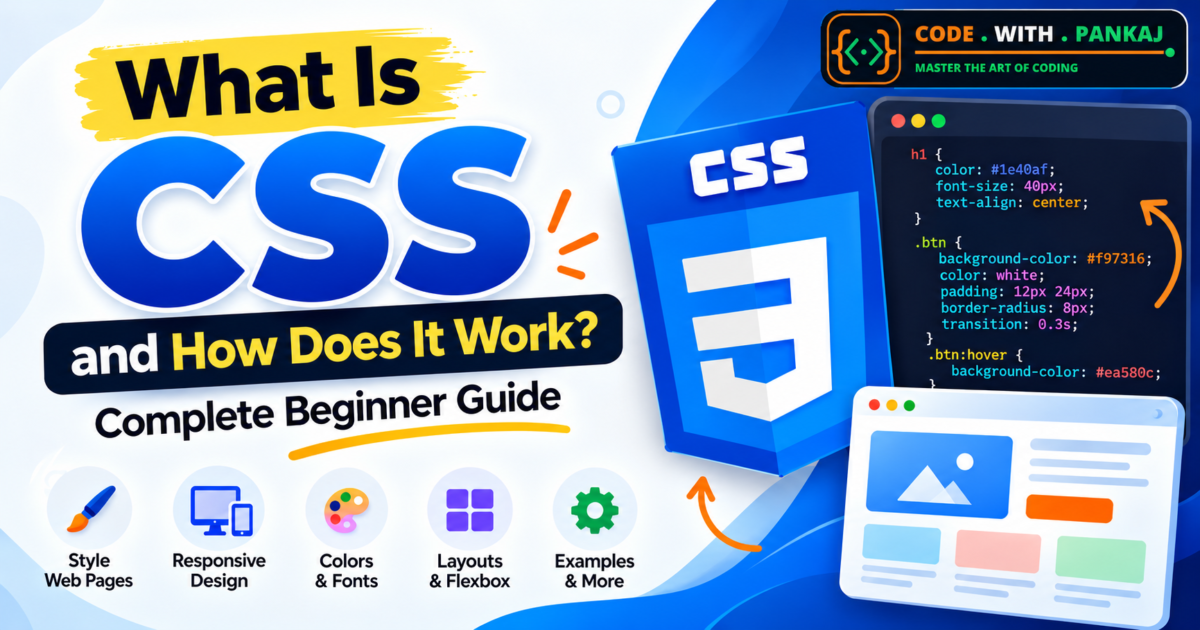
In this beginner-friendly guide, we will understand what CSS is, how CSS works, why CSS is important, different ways to use CSS, CSS syntax, selectors, properties, examples, and basic concepts.
What Is CSS?
CSS stands for Cascading Style Sheets.
CSS is a language used to design and style web pages.
It controls how HTML elements look on a website.
With CSS, you can change:
- Text color
- Font size
- Background color
- Width and height
- Spacing
- Borders
- Buttons
- Images
- Page layout
- Navigation menus
- Responsive design
- Animations
- Hover effects
Without CSS, most websites would look very simple and plain.
Simple Definition
CSS is used to make HTML pages beautiful and properly designed.
For example, HTML can create a button:
<button>Click Me</button>
CSS can change how that button looks:
button {
    background-color: orange;
    color: white;
    padding: 12px 20px;
    border: none;
}
Now the button will have an orange background, white text, and better spacing.
What Does CSS Stand For?
CSS means:
C – Cascading
S – Style
S – Sheets
The word Cascading means that multiple CSS rules can be applied to the same element, and the browser decides which rule has higher priority.
We will understand this concept later in this article.
Why Do We Use CSS?
CSS is one of the most important technologies in web development.
HTML alone can create a webpage, but it cannot provide a professional design.
CSS helps developers create attractive and user-friendly websites.
Some important benefits of CSS are:
1. Better Website Design
CSS allows you to add colors, backgrounds, fonts, borders, shadows, and other design elements.
2. Responsive Websites
CSS helps websites work properly on:
- Desktop
- Laptop
- Tablet
- Mobile
3. Easy Design Management
You can control the design of multiple pages using one CSS file.
4. Faster Development
Instead of writing design code again and again, you can reuse CSS classes.
5. Better User Experience
A clean and responsive design makes websites easier to use.
HTML vs CSS
HTML and CSS work together, but they have different purposes.
| HTML | CSS |
|---|---|
| Creates website structure | Controls website design |
| Adds headings | Changes heading styles |
| Adds paragraphs | Changes paragraph colors and fonts |
| Adds buttons | Styles buttons |
| Adds images | Controls image size and position |
| Creates forms | Styles form fields |
| Creates sections | Controls layouts |
For example:
<h1>Welcome to CodeWithPankaj</h1>
This HTML creates a heading.
Now we can style it using CSS:
h1 {
    color: orange;
    font-size: 40px;
}
The heading will now appear in orange with a larger font size.
How Does CSS Work?
CSS works by selecting an HTML element and applying design rules to it.
A basic CSS rule looks like this:
h1 {
    color: green;
}
In this example:
h1is the selector.coloris the CSS property.greenis the property value.
The browser reads the CSS and applies the selected styles to the matching HTML elements.
CSS Syntax
The basic CSS syntax is:
selector {
    property: value;
}
Example:
p {
    color: black;
    font-size: 18px;
}
Here:
Selector: p
Property: color
Value: black
Another property is:
Property: font-size
Value: 18px
Every CSS property normally ends with a semicolon ;.
Example of HTML and CSS Together
Here is a simple example.
HTML
<!DOCTYPE html>
<html>
<head>
    <title>CSS Example</title>
</head>
<body>

<h1>Hello World</h1>

<p>This is my first CSS example.</p>

</body>
</html>
Without CSS, the page will use the browser’s default design.
Now add CSS:
h1 {
    color: orange;
    text-align: center;
}

p {
    color: #333;
    font-size: 18px;
}
The browser will apply these styles to the heading and paragraph.
Three Ways to Add CSS
There are three main ways to add CSS to an HTML page.
1. Inline CSS
Inline CSS is written directly inside an HTML element.
Example:
<h1 style="color: orange;">Hello World</h1>
Advantages
- Easy for quick testing.
- Useful for very small changes.
Disadvantages
- Difficult to manage.
- Not recommended for large websites.
- Creates repeated code.
2. Internal CSS
Internal CSS is written inside the <style> tag in the HTML <head> section.
Example:
<!DOCTYPE html>
<html>
<head>

<style>

h1 {
    color: orange;
}

p {
    font-size: 18px;
}

</style>

</head>

<body>

<h1>Hello World</h1>

<p>Welcome to CSS.</p>

</body>
</html>
Internal CSS is useful for small single-page websites.
3. External CSS
External CSS is written in a separate .css file.
For example:
style.css
Inside style.css:
body {
    background-color: white;
}

h1 {
    color: orange;
}

p {
    color: #333;
}
Then connect it to HTML:
<link rel="stylesheet" href="style.css">
External CSS is the most commonly used method for professional websites.
It keeps HTML and CSS code clean and organized.
CSS Selectors
CSS selectors are used to select HTML elements.
There are different types of selectors.
1. Element Selector
The element selector targets all elements of a particular type.
Example:
p {
    color: blue;
}
This CSS will make all paragraph text blue.
2. Class Selector
A class selector starts with a dot ..
HTML:
<p class="intro">Welcome to CodeWithPankaj.</p>
CSS:
.intro {
    color: green;
}
Classes can be used on multiple elements.
3. ID Selector
An ID selector starts with #.
HTML:
<h1 id="main-title">Learn CSS</h1>
CSS:
#main-title {
    color: orange;
}
An ID should normally be unique on a page.
4. Universal Selector
The universal selector uses *.
Example:
* {
    margin: 0;
    padding: 0;
}
This selector applies styles to all elements.
5. Group Selector
You can apply the same style to multiple elements.
Example:
h1,
h2,
h3 {
    color: orange;
}
Now all three heading types will use the same color.
Common CSS Properties
There are many CSS properties.
Beginners should start with some commonly used properties.
CSS Color
Use the color property to change text color.
p {
    color: red;
}
You can also use HEX colors:
p {
    color: #ff6600;
}
Or RGB:
p {
    color: rgb(255, 102, 0);
}
CSS Background Color
Use background-color to change the background.
body {
    background-color: #f5f5f5;
}
Example for a section:
.hero {
    background-color: #111827;
}
CSS Font Size
You can change the text size using font-size.
p {
    font-size: 18px;
}
Example:
h1 {
    font-size: 42px;
}
CSS Font Family
The font-family property changes the font style.
body {
    font-family: Arial, sans-serif;
}
You can also use fonts such as:
- Arial
- Verdana
- Georgia
- Times New Roman
- Roboto
- Poppins
CSS Text Alignment
Use text-align to control text position.
h1 {
    text-align: center;
}
Other values include:
text-align: left;
text-align: right;
text-align: justify;
CSS Width and Height
You can control the size of elements.
.box {
    width: 300px;
    height: 200px;
}
You can also use percentage values:
.container {
    width: 80%;
}
CSS Margin
Margin creates space outside an element.
Example:
.box {
    margin: 20px;
}
You can also control each side separately:
.box {
    margin-top: 20px;
    margin-right: 10px;
    margin-bottom: 20px;
    margin-left: 10px;
}
CSS Padding
Padding creates space inside an element.
Example:
.box {
    padding: 20px;
}
For example:
button {
    padding: 12px 20px;
}
This gives the button more internal spacing.
Difference Between Margin and Padding
Many beginners get confused between margin and padding.
Remember:
Margin = Space outside an element
Padding = Space inside an element
Example:
.card {
    margin: 20px;
    padding: 20px;
}
The margin creates external space around the card.
The padding creates internal space between the card content and its border.
CSS Border
You can add a border using CSS.
.box {
    border: 1px solid #ddd;
}
You can also change the border radius.
.box {
    border-radius: 10px;
}
This creates rounded corners.
CSS Box Model
The CSS Box Model is an important concept for beginners.
Every HTML element is treated like a box.
The box contains:
- Content
- Padding
- Border
- Margin
Example:
.card {
    width: 300px;
    padding: 20px;
    border: 1px solid #ddd;
    margin: 20px;
}
Understanding the box model will help you create better website layouts.
CSS Display Property
The display property controls how an element appears.
Some common display values are:
display: block;
display: inline;
display: inline-block;
display: flex;
display: grid;
display: none;
Modern web developers often use Flexbox and CSS Grid for layouts.
What Is Flexbox in CSS?
Flexbox is used to arrange elements in rows or columns.
Example:
.container {
    display: flex;
    gap: 20px;
}
HTML:
<div class="container">

    <div>Box 1</div>

    <div>Box 2</div>

    <div>Box 3</div>

</div>
All three boxes can appear in one row.
You can also align items:
.container {
    display: flex;
    justify-content: center;
    align-items: center;
}
What Is CSS Grid?
CSS Grid is another layout system.
It is useful when you want to create rows and columns.
Example:
.grid {
    display: grid;
    grid-template-columns: repeat(3, 1fr);
    gap: 20px;
}
This code creates three equal columns.
CSS Grid is commonly used for:
- Product layouts
- Blog cards
- Portfolio sections
- Dashboards
- Galleries
CSS Hover Effect
The :hover selector applies styles when a user moves the mouse over an element.
Example:
button {
    background-color: orange;
    color: white;
}

button:hover {
    background-color: green;
}
The button background will change from orange to green when the user places the mouse over it.
CSS Transition
CSS transitions make style changes smoother.
Example:
button {
    background-color: orange;
    transition: 0.3s;
}

button:hover {
    background-color: green;
}
Now the background color will change smoothly.
CSS Shadow
You can add shadows to elements.
Example:
.card {
    box-shadow: 0 4px 10px rgba(0, 0, 0, 0.1);
}
Text can also have shadows:
h1 {
    text-shadow: 2px 2px 5px #ccc;
}
Responsive Design with CSS
Responsive design means creating websites that work properly on different screen sizes.
A website should look good on:
- Desktop computers
- Laptops
- Tablets
- Smartphones
CSS Media Queries are commonly used for responsive design.
Example:
.container {
    width: 80%;
}

@media (max-width: 768px) {

    .container {
        width: 95%;
    }

}
When the screen width becomes 768px or smaller, the container width changes to 95%.
What Are CSS Media Queries?
Media Queries allow developers to apply different styles based on screen size.
Example:
h1 {
    font-size: 40px;
}

@media (max-width: 600px) {

    h1 {
        font-size: 28px;
    }

}
Desktop users will see a larger heading.
Mobile users will see a smaller heading.
What Does Cascading Mean in CSS?
The word Cascading is very important in CSS.
Sometimes multiple CSS rules target the same element.
For example:
p {
    color: blue;
}

p {
    color: red;
}
In this example, the paragraph will normally become red because the second rule appears later.
However, CSS priority also depends on things such as:
- Inline styles
- IDs
- Classes
- Elements
- Specificity
- Source order
!important
CSS Specificity
Specificity decides which CSS rule should be applied when multiple selectors target the same element.
For example:
p {
    color: blue;
}

.text {
    color: green;
}

#message {
    color: red;
}
HTML:
<p id="message" class="text">Hello</p>
The ID selector normally has higher specificity than the class and element selector.
Therefore, the text will appear red.
CSS Comments
CSS comments are useful for explaining your code.
Example:
/* Main heading style */

h1 {
    color: orange;
}
Comments do not appear on the website.
They are only visible inside the code.
Complete CSS Example
Here is a simple card design.
HTML
<div class="card">

    <h2>Learn CSS</h2>

    <p>Start learning CSS with simple examples.</p>

    <button>Start Learning</button>

</div>
CSS
.card {
    width: 300px;
    padding: 20px;
    margin: 30px auto;
    border-radius: 10px;
    background-color: white;
    box-shadow: 0 4px 15px rgba(0, 0, 0, 0.1);
    text-align: center;
}

.card h2 {
    color: #ff6600;
}

.card p {
    color: #555;
    font-size: 16px;
}

.card button {
    background-color: #ff6600;
    color: white;
    padding: 10px 20px;
    border: none;
    border-radius: 5px;
    cursor: pointer;
}

.card button:hover {
    background-color: green;
}
This example uses many important CSS concepts together.
Advantages of CSS
CSS provides many benefits.
- Easy website styling
- Better website appearance
- Responsive layouts
- Reusable design
- Cleaner HTML code
- Faster website development
- Easy maintenance
- Better user experience
- Supports animations
- Works with all modern browsers
Disadvantages of CSS
CSS also has a few challenges.
- Beginners may find layouts confusing.
- Different browsers can sometimes behave differently.
- Large CSS files can become difficult to manage.
- Specificity problems can create unexpected styles.
- Poorly written CSS can become difficult to maintain.
These problems can be reduced by using proper coding practices.
CSS vs JavaScript
CSS and JavaScript have different roles.
| CSS | JavaScript |
|---|---|
| Controls design | Controls functionality |
| Changes colors | Handles button actions |
| Controls layouts | Handles form validation |
| Adds animations | Loads dynamic data |
| Makes websites responsive | Creates interactive features |
Most modern websites use HTML, CSS, and JavaScript together.
Is CSS a Programming Language?
CSS is generally described as a style sheet language, not a traditional programming language.
CSS does not work like languages such as:
- JavaScript
- Python
- Java
- C#
- PHP
Its main purpose is to control the presentation and design of web pages.
Where Is CSS Used?
CSS is used in almost every modern website.
It is commonly used for:
- Business websites
- Portfolio websites
- Blog websites
- E-commerce websites
- Admin dashboards
- Web applications
- Landing pages
- Online learning platforms
- Company websites
If you want to become a frontend or full-stack developer, learning CSS is very important.
Popular CSS Frameworks
After learning basic CSS, you can learn CSS frameworks.
Popular CSS frameworks and tools include:
Bootstrap
Bootstrap provides ready-made components such as buttons, cards, forms, navigation bars, and grids.
Tailwind CSS
Tailwind uses utility classes to quickly build custom designs.
Foundation
Foundation is another responsive frontend framework.
However, beginners should first understand normal CSS before depending heavily on frameworks.
What Should You Learn After CSS Basics?
After learning basic CSS, continue with:
- CSS Box Model
- Flexbox
- CSS Grid
- Position Property
- Responsive Design
- Media Queries
- CSS Variables
- Transitions
- Transform
- Animations
- Bootstrap
- Tailwind CSS
After that, start learning JavaScript.
Beginner CSS Practice Project Ideas
You can improve your CSS skills by creating small projects.
Try building:
- Personal profile card
- Digital visiting card
- Login page
- Registration page
- Product card
- Pricing card
- Navigation bar
- Portfolio landing page
- Contact form
- Blog card
- Responsive homepage
Practice is the best way to understand CSS.
Frequently Asked Questions About CSS
What is CSS in simple words?
CSS is a style sheet language used to design HTML web pages. It controls colors, fonts, layouts, spacing, backgrounds, and responsiveness.
What does CSS stand for?
CSS stands for Cascading Style Sheets.
Why is CSS used?
CSS is used to make websites attractive, responsive, organized, and easy to use.
Is CSS difficult to learn?
CSS basics are easy to learn. Advanced layouts and responsive design require regular practice.
Can I learn CSS without HTML?
You can study CSS concepts separately, but HTML knowledge is strongly recommended because CSS is mainly used to style HTML elements.
Is CSS a programming language?
CSS is generally considered a style sheet language rather than a traditional programming language.
How long does it take to learn CSS?
Basic CSS concepts can be learned fairly quickly, but becoming comfortable with responsive layouts, Flexbox, Grid, and real projects requires practice.
Should I learn CSS before JavaScript?
Yes. A common beginner learning order is:
HTML → CSS → JavaScript
Conclusion
CSS is one of the most important technologies in web development.
HTML creates the structure of a webpage, while CSS controls how the page looks.
Using CSS, you can create attractive designs, responsive layouts, buttons, cards, navigation bars, animations, forms, and complete website interfaces.
If you are starting your web development journey, first understand basic CSS syntax, selectors, colors, spacing, box model, Flexbox, Grid, and responsive design.
The most important thing is to practice regularly.
Start with small projects, write your own CSS code, and slowly move toward responsive websites and complete frontend projects.