
If you want to learn web development, HTML is the best place to start.
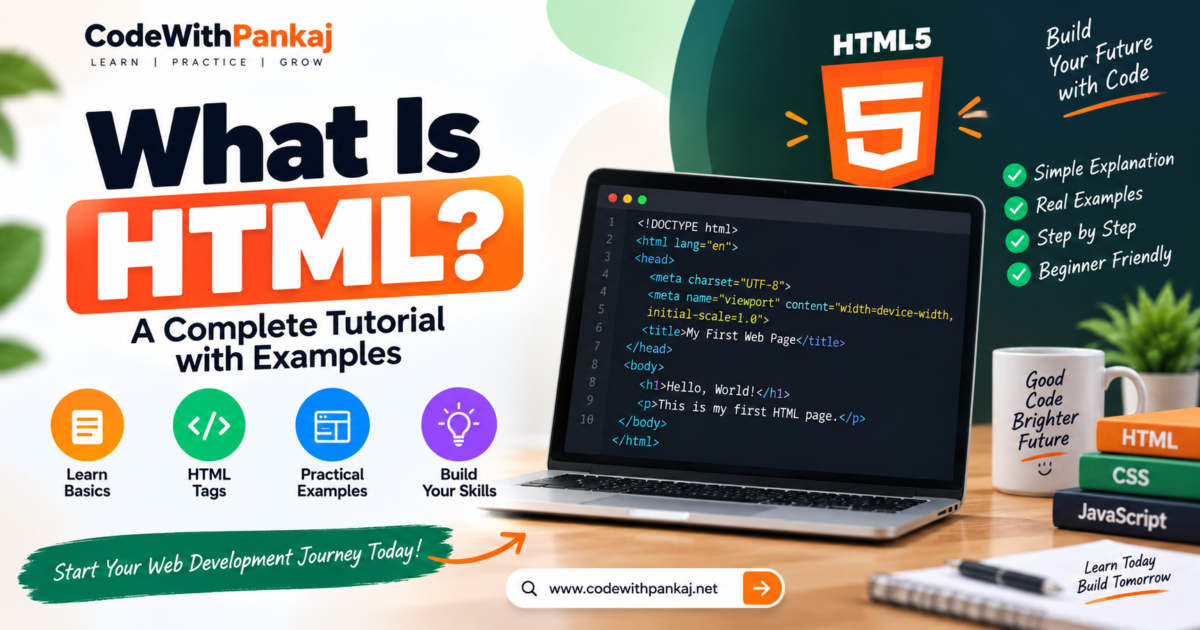
Every website you open on the internet uses HTML in some form. HTML creates the basic structure of a web page. It tells the browser where to show headings, paragraphs, images, links, buttons, tables, forms, and other content.
In this beginner-friendly tutorial, you will learn what HTML is, how it works, important HTML tags, attributes, forms, tables, semantic elements, and practical examples.
Even if you have never written code before, you can easily start learning HTML.
What Is HTML?
HTML stands for HyperText Markup Language.
HTML is the standard markup language used to create the structure of web pages.
It is not a programming language because HTML does not contain programming logic like conditions, loops, or calculations.
Instead, HTML uses different tags to tell the browser how content should be displayed.
For example:
<h1>Welcome to CodeWithPankaj</h1>

<p>This is my first HTML page.</p>
Here:
<h1>creates a main heading.<p>creates a paragraph.
When you open this code in a browser, it will display a heading and a paragraph.
What Does HTML Do?
HTML helps us create the basic structure of a website.
Using HTML, you can add:
- Headings
- Paragraphs
- Images
- Links
- Buttons
- Lists
- Tables
- Forms
- Videos
- Audio
- Navigation menus
- Sections
- Articles
- Footer content
Think of a website like a house.
HTML is the structure of the house.
CSS controls the design and appearance.
JavaScript adds functionality and interaction.
HTML, CSS, and JavaScript
HTML, CSS, and JavaScript are the three main technologies used in frontend web development.
HTML
HTML creates the structure of the webpage.
Example:
<h1>Hello World</h1>
CSS
CSS is used to design the webpage.
Example:
h1 {
    color: blue;
}
JavaScript
JavaScript adds functionality and interaction.
Example:
alert("Hello World");
A simple way to understand them is:
HTML = Structure
CSS = Design
JavaScript = Functionality
How Does HTML Work?
HTML code is written inside a file with the .html extension.
For example:
index.html
When you open this file in a web browser such as Google Chrome, Microsoft Edge, Firefox, or Safari, the browser reads the HTML code and displays the webpage.
Basic Structure of an HTML Document
Every HTML page normally follows a basic structure.
<!DOCTYPE html>
<html lang="en">

<head>
    <meta charset="UTF-8">
    <meta name="viewport" content="width=device-width, initial-scale=1.0">
    <title>My First Website</title>
</head>

<body>

    <h1>Welcome to My Website</h1>

    <p>This is my first HTML page.</p>

</body>

</html>
Let’s understand each part.
1. DOCTYPE
<!DOCTYPE html>
This tells the browser that the document uses HTML5.
HTML5 is the modern version of HTML.
2. HTML Tag
<html lang="en">
The <html> tag is the main container of the complete HTML document.
The lang="en" attribute tells browsers and search engines that the page language is English.
3. Head Section
<head>
</head>
The <head> section contains information about the webpage.
It can include:
- Page title
- Meta description
- Character encoding
- CSS files
- JavaScript files
- SEO information
- Favicon
4. Title Tag
<title>My First Website</title>
The <title> tag defines the title of the webpage.
This title normally appears in the browser tab.
It is also important for SEO.
5. Body Tag
<body>
</body>
The <body> contains the visible content of the webpage.
For example:
<body>

    <h1>Hello</h1>

    <p>Welcome to my website.</p>

</body>
Everything visible to the visitor normally goes inside the <body> tag.
What Are HTML Tags?
HTML uses tags to define different types of content.
Most tags have an opening tag and a closing tag.
Example:
<p>Hello World</p>
Here:
<p>
is the opening tag.
And:
</p>
is the closing tag.
The text between them is the content.
HTML Headings
HTML provides six heading levels.
They are:
<h1>Heading 1</h1>

<h2>Heading 2</h2>

<h3>Heading 3</h3>

<h4>Heading 4</h4>

<h5>Heading 5</h5>

<h6>Heading 6</h6>
<h1> is the most important heading.
<h6> is the least important heading.
For good page structure, normally use one main <h1> heading and organize other sections using <h2>, <h3>, and other heading levels.
HTML Paragraph
The <p> tag is used to create paragraphs.
Example:
<p>HTML is the basic language of web development.</p>
You can create multiple paragraphs.
<p>My name is Pankaj.</p>

<p>I am learning web development.</p>
HTML Line Break
The <br> tag creates a line break.
Example:
Hello<br>
Welcome to CodeWithPankaj
Output:
Hello
Welcome to CodeWithPankaj
HTML Horizontal Line
The <hr> tag creates a horizontal line.
Example:
<h2>About Me</h2>

<hr>

<p>I am learning HTML.</p>
HTML Text Formatting
HTML provides several tags for formatting text.
Bold Text
<b>This text is bold.</b>
Or:
<strong>This text is important.</strong>
Italic Text
<i>This text is italic.</i>
Or:
<em>This text is emphasized.</em>
Underline Text
<u>This text is underlined.</u>
Highlighted Text
<mark>This text is highlighted.</mark>
Small Text
<small>This is small text.</small>
Deleted Text
<del>₹1,000</del>
Superscript
10<sup>2</sup>
Output:
10²
Subscript
H<sub>2</sub>O
Output:
H₂O
HTML Links
The <a> tag is used to create links.
Example:
<a href="https://codewithpankaj.net/">
    Visit CodeWithPankaj
</a>
The href attribute contains the destination URL.
Open Link in New Tab
Use:
target="_blank"
Example:
<a href="https://codewithpankaj.net/" target="_blank">
    Visit Website
</a>
The link will open in a new browser tab.
HTML Images
The <img> tag is used to display images.
Example:
<img src="image.jpg" alt="HTML Tutorial">
Here:
src means image source.
alt provides alternative text for the image.
Alt text is useful for accessibility and SEO.
Add Image Width
<img src="image.jpg" alt="HTML Tutorial" width="500">
You can also control image sizes using CSS.
HTML Lists
HTML supports ordered and unordered lists.
Unordered List
An unordered list normally displays bullet points.
<ul>
    <li>HTML</li>
    <li>CSS</li>
    <li>JavaScript</li>
</ul>
Output:
- HTML
- CSS
- JavaScript
Ordered List
An ordered list normally displays numbers.
<ol>
    <li>Learn HTML</li>
    <li>Learn CSS</li>
    <li>Learn JavaScript</li>
</ol>
Output:
- Learn HTML
- Learn CSS
- Learn JavaScript
HTML Buttons
You can create a button using the <button> tag.
<button>Click Me</button>
You can later use CSS to design the button and JavaScript to add functionality.
HTML Tables
HTML tables are useful for showing structured information.
Example:
<table border="1">

    <tr>
        <th>Name</th>
        <th>Course</th>
        <th>Status</th>
    </tr>

    <tr>
        <td>Pankaj</td>
        <td>HTML</td>
        <td>Learning</td>
    </tr>

    <tr>
        <td>Rahul</td>
        <td>CSS</td>
        <td>Completed</td>
    </tr>

</table>
Important table tags are:
<table> creates the table.
<tr> creates a table row.
<th> creates a table heading.
<td> creates table data.
For modern websites, table design should normally be handled using CSS instead of the old border attribute.
HTML Forms
Forms are very important in web development.
Forms allow users to enter information.
Examples include:
- Login form
- Registration form
- Contact form
- Search form
- Feedback form
- Checkout form
Here is a simple form:
<form>

    <label>Name:</label>

    <input type="text" name="name">

    <br><br>

    <label>Email:</label>

    <input type="email" name="email">

    <br><br>

    <button type="submit">
        Submit
    </button>

</form>
Common HTML Input Types
HTML provides different input types.
Text Input
<input type="text">
Email Input
<input type="email">
Password Input
<input type="password">
Number Input
<input type="number">
Date Input
<input type="date">
File Upload
<input type="file">
Checkbox
<input type="checkbox">
Radio Button
<input type="radio">
Submit Button
<input type="submit" value="Submit">
HTML Textarea
The <textarea> element allows users to enter a larger amount of text.
Example:
<textarea rows="5" cols="30">
</textarea>
It is commonly used for:
- Messages
- Feedback
- Comments
- Descriptions
HTML Select Dropdown
You can create a dropdown using the <select> tag.
<select>

    <option>HTML</option>

    <option>CSS</option>

    <option>JavaScript</option>

</select>
What Are HTML Attributes?
HTML attributes provide additional information about an element.
Example:
<a href="https://example.com">
    Visit Website
</a>
Here:
href
is an attribute.
Another example:
<img src="photo.jpg" alt="My Photo">
Here:
src and alt are attributes.
ID and Class in HTML
Two very important HTML attributes are id and class.
ID
An ID normally identifies one unique element.
Example:
<h1 id="main-title">
    Welcome
</h1>
Class
A class can be used on multiple elements.
Example:
<p class="text">
    First paragraph
</p>

<p class="text">
    Second paragraph
</p>
Classes are commonly used with CSS and JavaScript.
HTML Div Tag
The <div> tag is a general container.
It is commonly used to group elements together.
Example:
<div>

    <h2>About Us</h2>

    <p>Welcome to our website.</p>

</div>
You can use CSS to design the complete <div> section.
HTML Span Tag
The <span> tag is normally used for a small part of text.
Example:
<p>
    Learn <span>HTML</span> today.
</p>
It is useful when you want to style or manipulate only a small part of a sentence.
Semantic HTML
Semantic HTML uses meaningful tags that clearly describe the purpose of different sections.
Examples include:
<header>
<nav>
<main>
<section>
<article>
<aside>
<footer>
Semantic HTML makes your code easier to understand and can also help with accessibility and page structure.
Example of Semantic HTML
<!DOCTYPE html>

<html lang="en">

<head>

    <meta charset="UTF-8">

    <title>My Blog</title>

</head>

<body>

<header>

    <h1>CodeWithPankaj</h1>

</header>

<nav>

    <a href="#">Home</a>
    <a href="#">Blog</a>
    <a href="#">About</a>
    <a href="#">Contact</a>

</nav>

<main>

    <article>

        <h2>What Is HTML?</h2>

        <p>
            HTML is the standard markup language
            used to create web pages.
        </p>

    </article>

</main>

<footer>

    <p>© 2026 CodeWithPankaj</p>

</footer>

</body>

</html>
This structure is easier to understand than using only <div> elements everywhere.
HTML Comments
Comments allow developers to write notes inside HTML code.
Comments are not displayed on the webpage.
Example:
<!-- This is a comment -->
Developers use comments to explain code or temporarily disable sections.
HTML Video
You can add videos using the <video> tag.
<video width="600" controls>

    <source src="video.mp4" type="video/mp4">

</video>
The controls attribute displays video controls such as:
- Play
- Pause
- Volume
- Full screen
HTML Audio
You can add audio using the <audio> element.
<audio controls>

    <source src="audio.mp3" type="audio/mpeg">

</audio>
HTML iframe
An iframe can display another webpage or embedded content inside your webpage.
Example:
<iframe
    src="https://example.com"
    width="600"
    height="400">
</iframe>
You may also see iframes used for embedded maps or videos.
How to Create Your First HTML Page
Creating your first HTML website is easy.
Step 1: Create a Folder
Create a folder on your computer.
For example:
my-first-website
Step 2: Create an HTML File
Inside the folder, create:
index.html
Step 3: Open the File in a Code Editor
You can use an editor such as Visual Studio Code.
Step 4: Add HTML Code
Paste this code:
<!DOCTYPE html>

<html lang="en">

<head>

    <meta charset="UTF-8">

    <meta name="viewport"
          content="width=device-width, initial-scale=1.0">

    <title>My First Website</title>

</head>

<body>

    <h1>Hello World!</h1>

    <p>
        This is my first HTML website.
    </p>

</body>

</html>
Step 5: Save the File
Press:
Ctrl + S
Step 6: Open the File in Your Browser
Double-click the index.html file.
Your webpage should now open in your browser.
Congratulations.
You have created your first HTML webpage.
Complete Beginner HTML Example
Here is a small complete website example.
<!DOCTYPE html>

<html lang="en">

<head>

    <meta charset="UTF-8">

    <meta name="viewport"
          content="width=device-width, initial-scale=1.0">

    <title>Kamal Pankaj Portfolio</title>

</head>

<body>

<header>

    <h1>Kamal Pankaj</h1>

    <p>Web Development Learner</p>

</header>

<hr>

<nav>

    <a href="#home">Home</a>

    <a href="#about">About</a>

    <a href="#skills">Skills</a>

    <a href="#contact">Contact</a>

</nav>

<hr>

<section id="home">

    <h2>Welcome</h2>

    <p>
        Welcome to my personal website.
    </p>

</section>

<section id="about">

    <h2>About Me</h2>

    <p>
        I am learning web development
        and building practical projects.
    </p>

</section>

<section id="skills">

    <h2>My Skills</h2>

    <ul>

        <li>HTML</li>

        <li>CSS</li>

        <li>JavaScript</li>

        <li>PHP</li>

    </ul>

</section>

<section id="contact">

    <h2>Contact Me</h2>

    <form>

        <label>Name</label>

        <br>

        <input type="text">

        <br><br>

        <label>Email</label>

        <br>

        <input type="email">

        <br><br>

        <label>Message</label>

        <br>

        <textarea rows="5"></textarea>

        <br><br>

        <button type="submit">
            Send Message
        </button>

    </form>

</section>

<hr>

<footer>

    <p>
        © 2026 Kamal Pankaj. All Rights Reserved.
    </p>

</footer>

</body>

</html>
This simple example uses many important HTML concepts together.
HTML File Structure for a Small Website
A beginner website may look like this:
my-website/
│
├── index.html
├── about.html
├── contact.html
│
├── css/
│   └── style.css
│
├── js/
│   └── script.js
│
└── images/
    └── logo.png
Here:
index.html is the homepage.
about.html is the About page.
contact.html is the Contact page.
style.css contains CSS code.
script.js contains JavaScript code.
The images folder stores images.
Important HTML Tags for Beginners
Some HTML tags you should learn first are:
| Tag | Purpose |
|---|---|
<html> | Main HTML document |
<head> | Page information |
<title> | Browser page title |
<body> | Visible webpage content |
<h1> to <h6> | Headings |
<p> | Paragraph |
<a> | Link |
<img> | Image |
<ul> | Unordered list |
<ol> | Ordered list |
<li> | List item |
<div> | Container |
<span> | Inline container |
<table> | Table |
<form> | Form |
<input> | Input field |
<button> | Button |
<textarea> | Large text field |
<header> | Header section |
<nav> | Navigation section |
<section> | Page section |
<article> | Article content |
<footer> | Footer section |
You do not need to memorize every HTML tag at once.
Start with the common tags and use them in small projects.
HTML Best Practices
When writing HTML, follow some basic good practices.
Use proper indentation.
Write meaningful page titles.
Always add alt text to important images.
Use semantic elements whenever possible.
Keep your HTML clean and easy to understand.
Use lowercase tag names.
Close elements correctly.
Use meaningful class and ID names.
Use headings in a logical order.
Avoid adding unnecessary HTML elements.
Separate HTML, CSS, and JavaScript when your project becomes larger.
Is HTML Difficult to Learn?
No.
HTML is one of the easiest technologies for beginners to learn.
You can understand the basic concepts in a few days.
However, becoming comfortable with HTML requires practice.
Instead of only watching tutorials, create small projects.
For example:
- Personal profile page
- Resume page
- Portfolio website
- Registration form
- Login page
- Contact page
- Product page
- Blog page
- Restaurant website
- Landing page
Every small project will improve your HTML skills.
Can You Create a Website with Only HTML?
Yes.
You can create a basic website using only HTML.
However, the website will have very limited design and functionality.
For a modern website, you usually need:
HTML + CSS + JavaScript
You may later learn frameworks and technologies such as:
- Bootstrap
- Tailwind CSS
- Angular
- React
- PHP
- Laravel
- ASP.NET
But HTML should be your starting point.
Is HTML a Programming Language?
No.
HTML is a markup language, not a programming language.
Programming languages normally support logic such as:
- Conditions
- Loops
- Functions
- Calculations
- Variables
HTML mainly describes the structure and meaning of webpage content.
What Is HTML5?
HTML5 is the modern HTML standard commonly used for websites and web applications.
It introduced and standardized many useful elements and capabilities, including elements such as:
<header>
<footer>
<section>
<article>
<nav>
<video>
<audio>
<canvas>
HTML5 makes it easier to build well-structured modern web pages.
Why Should You Learn HTML?
HTML is useful if you want to become a:
- Frontend Developer
- Full Stack Developer
- Web Designer
- WordPress Developer
- PHP Developer
- Angular Developer
- React Developer
- UI Developer
HTML is also useful for bloggers, digital marketers, SEO professionals, and website owners who want to understand how webpages are structured.
HTML Learning Roadmap
A beginner can follow this learning order:
Step 1: Learn basic HTML structure.
Step 2: Learn headings and paragraphs.
Step 3: Learn links and images.
Step 4: Learn lists.
Step 5: Learn tables.
Step 6: Learn forms.
Step 7: Learn IDs and classes.
Step 8: Learn semantic HTML.
Step 9: Build small projects.
Step 10: Start learning CSS.
After CSS, move to JavaScript.
Beginner HTML Practice Projects
After learning the basics, try creating:
- Personal Profile Page
- Resume Website
- Contact Form
- Registration Form
- Login Page
- Product Details Page
- Simple Blog Page
- Portfolio Website
- Restaurant Menu
- Landing Page
Do not worry if your first websites do not look professional.
The goal is to practice the structure first.
Design can be improved later with CSS.
Frequently Asked Questions
What does HTML stand for?
HTML stands for HyperText Markup Language.
Is HTML easy to learn?
Yes. HTML is beginner-friendly and is one of the easiest technologies to start with in web development.
Is HTML a programming language?
No. HTML is a markup language used to structure web content.
Can I learn HTML without coding experience?
Yes. You do not need previous programming experience to start learning HTML.
How long does it take to learn HTML?
You can learn the basic concepts in a few days, but regular practice is required to become comfortable with building webpages.
Do I need software to learn HTML?
You only need a text or code editor and a web browser.
A popular beginner setup is:
- Visual Studio Code
- Google Chrome
What should I learn after HTML?
After HTML, a good learning order is:
HTML
↓
CSS
↓
JavaScript
↓
Bootstrap or Tailwind CSS
↓
Frontend Framework
↓
Backend Development
Can HTML be used for mobile applications?
HTML is mainly used for web pages and web applications.
However, technologies such as Ionic and other hybrid development tools can use web technologies like HTML, CSS, and JavaScript to create mobile applications.
Final Thoughts
HTML is the foundation of web development.
Every beginner who wants to create websites should understand HTML before moving to more advanced technologies.
Do not try to memorize every tag.
Understand the basic structure, write code yourself, and build small projects.
Start with:
HTML
→ CSS
→ JavaScript
→ Real Projects
The more projects you create, the faster your web development skills will improve.
If you are just starting your coding journey, create your first index.html file today and start experimenting.
Happy Coding!
CodeWithPankaj